3 Use embedded animation in PowerPoint
PAGE 3 OF 3 • PLAY AND TEACH
Bring the animation into PowerPoint
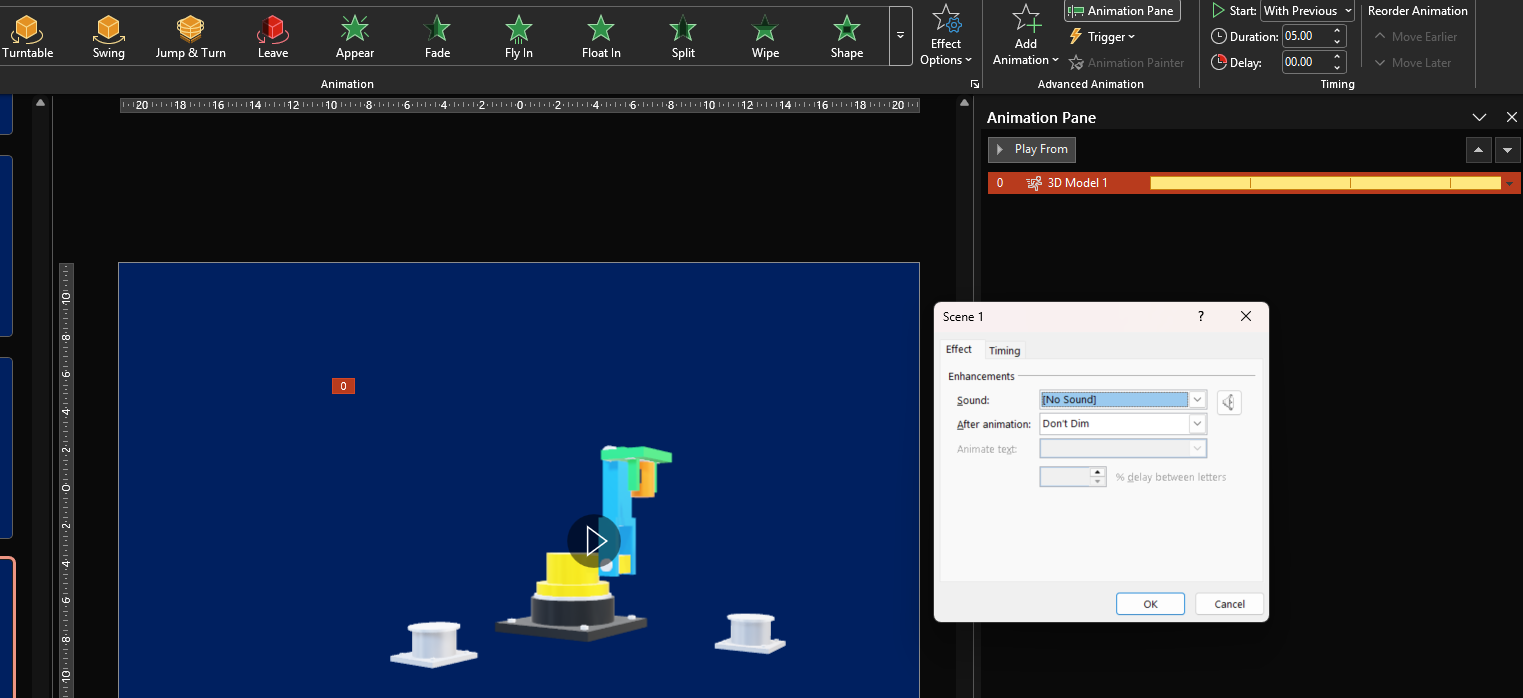
PowerPoint can move a whole model, or play movement already stored inside it. Those controls do different jobs.
Try the supplied example first
Open the download folder below this page and save robot_pick_and_place.glb to your computer. This is the final example Johan tested, not the more elaborate robot used for the course illustration.
- In desktop PowerPoint, open a blank slide.
- Choose Insert → 3D Models, then the option for a file on your device. The wording may vary by version.
- Select the GLB and insert it. Set its size and viewing angle.
- Inspect the model’s scene/play controls and run the embedded animation.
- Test it in Slide Show mode, then save and reopen the presentation to check playback again.
Two kinds of animation
| PowerPoint effects | Animation inside the GLB |
|---|---|
| Effects such as Turntable and Swing change the presentation of the model as a whole. | The file contains coordinated movement of parts, such as turret rotation, arm movement and jaw opening. |
| Useful for showing shape and different viewing angles. | Useful for showing a mechanism or process in action. |
| Choose an effect and adjust its available options in PowerPoint. | PowerPoint plays the scene. Revising the joint sequence requires a revised model animation. |
The example GLB contains one animation clip with six animation channels and a skeleton used to drive its parts. In plain language, the file carries instructions for how the mechanism changes over time. PowerPoint is playing those instructions.
Johan could adjust speed/duration and repetitions in his setup. He could not use that dialog to make one jaw close earlier or change the shoulder’s path. Those are edits to the embedded animation, so they belong in the conversation that produces the next GLB.
Revise the embedded animation in this GLB. Keep the geometry and colours unchanged. Pause for two seconds after the jaws close, then lift. Keep the cylinder upright during the transfer and release it only after it reaches the support. Provide a new downloadable GLB for me to test in PowerPoint.
If the model inserts but does not move
First distinguish “PowerPoint can display this model” from “PowerPoint can play this file’s animation”. Our first base model did not expose the expected Scenes/Play behaviour. A revised file using a skeleton-based animation worked in Johan’s setup. That was a file compatibility correction, not a difficult download process.
Check your PowerPoint version and test the supplied example. If the example works but your own file does not, send ChatGPT the GLB and describe the observed behaviour. Ask it to check that animation is present and produce a PowerPoint-compatible revision. Do not assume that every animated GLB will play identically in every application.
Give learners a reason to watch
Before replaying the robot, ask: “What must happen before the cylinder can be lifted?” Let learners predict, then explain the role of the jaws. Next ask: “Why must the cylinder be supported before the gripper opens?” The model becomes evidence for their explanation.
You can rotate the model while authoring a slide. That does not mean slideshow viewers automatically get a model they can drag and inspect. Likewise, putting a PPTX or GLB into Moodle does not itself create an interactive 3D viewer. This course provides files for downloading and testing in PowerPoint.
Finish with a practical check
- Does the model show the concept accurately from the view you selected?
- Do joints remain connected and clear of other parts throughout the action?
- Does the object remain supported or held, including at pickup and release?
- Does playback still work after saving and reopening?
- What will the learner predict, compare or explain?
Check your understanding — You want the gripper to wait while the arm continues moving. Is changing the scene duration enough?
No. Changing overall duration changes playback timing for the scene. A different relationship between the arm and gripper requires editing the animation stored in the GLB.
Further reading
- Microsoft: Insert animated 3D graphics
- Microsoft: 3D animation effects in PowerPoint
- Khronos: How glTF animation data works — optional technical background.