Video and Free Course Catalog

Site: Learn MyFutureWay
Course: Learn MyFutureWay
Book: Video and Free Course Catalog
Printed by:
Date: Thursday, 4 June 2026, 10:08 PM

Description

These are all the YouTube videos and mini-courses related to this site. All the courses are free.

Site-wide Announcements in Moodle

Show Critical Announcements Inside Every Moodle Course — No Coding Required

Short description:
A focused guide for teachers and administrators who want to place clear, highly visible messages at the top of their Moodle courses. Learn a safe, sandbox-tested technique that works across themes, requires no plugins, and uses ChatGPT to help you customise the banner for your institution.

Long description:
Educators frequently ask the same question: “How do I make sure students actually see my announcements in Moodle?”
Despite the many communication tools Moodle provides, none ensure visibility inside the learning path. Forum posts can be missed. Dashboard alerts are ignored. Emails get buried. And theme changes are often restricted or risky.

This course offers a practical alternative.

You will learn how to create a clean, modern message banner that appears only in the first section of each course — the one place every student lands. The method uses a small piece of HTML, JavaScript, and CSS placed in Moodle’s Additional HTML settings. It does not touch core code, does not require plugins, and can be fully tested in a safe sandbox before you apply it to your live site.

The mini-course includes:

  • A clear explanation of why Moodle’s traditional communication channels often fail inside course pages

  • Access to a publicly available Moodle sandbox where you can practise as a full admin

  • A ready-to-use banner script with image support, buttons, colours, and layout already built in

  • Instructions on how to ask ChatGPT to customise the message for your own context

  • Troubleshooting guidance for different themes and Moodle versions

If you want your students to notice important information — orientation messages, onboarding guidance, safety notices, policy updates, or upcoming deadlines — this is one of the simplest, safest and most flexible solutions available.

Define Your Signature Video Style

Define Your Signature Video Style – Free Mini-Course for Educators

Discover how to make your teaching videos instantly recognisable and professionally consistent — without expensive equipment or editing skills.

In this short, practical course, you’ll learn to define your signature video style — the set of visual, audio, and structural choices that make your content stand out and build lasting trust with learners. Whether you teach on YouTube, Moodle, or Udemy, a consistent style helps you communicate more clearly, connect more deeply, and produce videos faster.

🎯 What You’ll Learn

  • How to develop a visual identity that enhances your teaching rather than distracts from it.
  • How to use voice, tone, and pacing to engage adult learners.
  • How to design your content structure for maximum clarity and retention.
  • How to define your audience positioning so your videos resonate with the right viewers.
  • How to maintain consistency across all your videos and platforms.

📘 Downloadable Resource

To help you get started, download the free Video Style Guide Template (Word) — the same worksheet Johan uses to define his own educator-first video style. This downloadable document is fully editable, making it easy to adapt for your own use.

Note: Downloadable teaching resources like this template can also boost your course’s visibility in Google Search by providing valuable, shareable educational content.

🧩 Course Structure

  1. Watch the Core Video Lecture: Learn how to define your unique video style.
  2. Explore Supporting Pages: Each page expands on one of the five key elements of video style.
  3. Complete the Assignment: Use the downloadable template to create your personal style guide.
  4. Join the Forum: Share your guide and exchange feedback with other educators.

🗣️ Forum Invitation

If you are a visual style expert, members in this forum would love to hear from you. If you’d like others to review your personal video style guide, please submit it here and share your thoughts.

🔑 Keywords for Search Optimisation

Video style guide for teachers, YouTube educator branding, create consistent teaching videos, instructional video design, educational video production style.

Suggested Image Ideas

  • A clean desk setup with a camera and microphone, symbolising professionalism and simplicity.
  • A split-screen graphic showing “before” and “after” video styles (messy vs. consistent).
  • A minimalist template screenshot or moodboard showing colour palette, fonts, and slide design.
  • A behind-the-scenes photo of a teacher recording in front of a green screen.

Created by Johan Venter – MyFutureWay Learning Design. Licensed under CC BY 4.0. Freely use, adapt, and share with attribution.

How to Ethically Grow Your Audience and Sell Courses Using YouTube, Moodle, and Email

Build a System, Not Just a Video: Grow Your Audience Ethically

Are you an educator or course creator looking to attract students without spending money on ads? In this chapter, Johan Venter explains how to combine YouTube, mini-Moodle courses, and email marketing to ethically nurture learners and increase course sales.

Learn why YouTube is the second-largest search engine in the world and how posting educational videos positions you as a trusted expert. Discover how free mini-Moodle courses convert curious viewers into subscribers who give you permission to follow up via email, creating a long-term relationship that naturally leads to course purchases.

This chapter is paired with a free mini-course that demonstrates:

  • How to plan videos that attract the right learners.

  • How to set up a mini-Moodle course to turn viewers into engaged subscribers.

  • How to write email sequences that nurture trust rather than spam.

Each step is designed for educators, trainers, and online instructors who want to maximize impact ethically, grow their audience, and transform value into sustainable income.

Watch the video below to start learning how to build yourhttps://learn.myfutureway.co.za/course/view.php?id own system:
   

Created: 28 October 2025 | Video release: 5 November 2025

Next Steps: After reading this chapter, explore the full mini-course for practical exercises and tools you can use immediately.

Designing and Scripting Interactive Videos for H5P


Video date: 22 October 2025

Learn how to design and script interactive videos for H5P — the key to transforming passive viewing into active learning. In this practical session, Johan Venter shows how to plan engagement from the first draft rather than adding interactivity as an afterthought. You’ll discover how to: Identify natural pause points where learners reflect or choose a path forward. Script questions and feedback that serve clear learning goals. Pace narration, visuals, and emotion so interactivity feels seamless and authentic. Anticipate support clips, branching, and feedback moments while recording. Whether you publish through Moodle, H5P.com, or YouTube, this guide helps you build videos that respond to learners — not just play to them. Ideal for educators, trainers, and content creators who want to elevate engagement and make their next video truly interactive.

Media Literacy and Critical Thinking in the age of Tik-Tok and discord.


 Video is unlisted; will become public on 19 November 2025

Critical Thinking and Video Literacy: Helping Students Navigate the Digital World

Every day, young people encounter an online world full of persuasive content — much of it emotionally charged, manipulative, or simply false. This short course introduces educators to a practical way to address that challenge using interactive Chatbot conversations.

Through guided examples, you’ll see how AI can be used to prompt reflection about social media habits, the power of algorithms, and the line between understanding a viewpoint and being influenced by it.

🎥 Watch the introduction video and explore how technology can help us build media-literate, critically aware learners.

Crafting Engaging Animated Stories with PowerPoint


Learning Objectives

By the end of the lesson, students should be able to:

  • Identify the key steps in creating an animated story using PowerPoint.
  • Explain how to structure a lesson as a story with a crisis, journey, and resolution.
  • Apply basic animation effects to synchronize visuals with narration in PowerPoint.

Vocabulary

  1. Animated Story – A lesson told through moving visuals and narration.
  2. Crisis – The problem or challenge introduced at the start of a story.
  3. Journey – The process or steps taken to solve the crisis.
  4. Resolution – The outcome or solution to the crisis.
  5. SmartArt – A PowerPoint feature to create structured, animated diagrams.
  6. Text-to-Speech – Technology that converts written text into spoken audio.
  7. Entrance Animation – Visual effect showing how an object appears on screen.
  8. Emphasis Animation – Effect that highlights an object already visible.
  9. Exit Animation – Effect showing how an object leaves the screen.
  10. Audible Markers – Sound cues used to mark sections in audio editing.

Essential Questions

  1. How can storytelling techniques enhance student engagement in lessons?
  2. What role do animations play in helping learners understand complex ideas?
  3. How can technology tools like PowerPoint and AI voices improve teaching efficiency?

Key Points

1. Why Use Animated Storytelling?

  • Animated storytelling makes lessons memorable by turning dry concepts into engaging, unfolding narratives.

  • PowerPoint can be used to create short, animated case studies that students remember better than bullet-point slides.

  • Once created, animations can be easily reused and updated with minimal effort.

Improving your Video's Audio using Audacity


Introduction

Welcome to this mini-Moodle course on improving your video's audio using Audacity and simple tools you already have. The aim is not podcast-level perfection, but clear, pleasant audio that makes your videos easier and more enjoyable to watch.

Even if you record on a cellphone in a home study, you can produce professional-sounding audio using simple techniques:

  • Noise reduction

  • EQ Filter Curve

  • Compression

  • Loudness normalization

  • Subtle reverb

By the end of this course, you’ll know how to take your raw video and create a polished final version that your audience will love.

Build a Moodle Sandbox

Build a resettable Moodle sandbox: experiment safely, learn faster, and redesign your LMS without risk.

Set up a public or hosted sandbox, automate restores, and test themes and course designs with confidence — no coding required.

Course overview

This concise mini-course teaches you how to create a fully resettable Moodle sandbox that lets you experiment with themes, layouts, plugins, and course designs without touching your production site or risking learner data. Ideal for teachers, instructional designers, and Moodle admins who want to learn by doing.

What you will learn

  • Create a sandbox subdomain using cPanel and one-click installers (Softaculous) — no terminal or server coding required.
  • Install and secure Moodle on a subdomain and create template courses and test users for realistic experiments.
  • Use theme presets and SCSS to prototype professional-looking course surfaces and portable design changes.
  • Automate sandbox restores with scheduled backups, a simple restore script (bash), and a cron job so the site resets regularly.
  • Leverage AI tools (e.g., ChatGPT) to generate code snippets, friendly explanations of hosting settings, and sample SCSS presets — even if you’re not a developer.

Why this matters

One wrong click on a live LMS can affect real learners. A sandbox gives you a safe, repeatable space to test design improvements, build confidence with admin tools, and iterate quickly — all while preserving the integrity of your production environment.

Practical outcomes

  • Deploy a sandbox in hours using ordinary hosting tools.
  • Create theme presets that are portable to other Boost-based themes.
  • Restore the sandbox automatically on a schedule so experiments are ephemeral.
  • Use the sandbox to prototype H5P, SCORM imports, course layouts, and admin workflows.

Resources & links

  • Lumi (H5P editor & tools) — useful for H5P prototyping
  • Example backup/restore workflow (included in course): Softaculous export, site files, and database SQL snapshot

How to use this course

Start by watching the video, then follow the step-by-step pages in the mini-course that walk you through subdomain creation, Moodle install, theme preset setup, and cron-based restores. Use the sandbox credentials on the course homepage to log in as admin, teacher, or student and practice tasks safely.

Call to action

Enroll now to access the full step-by-step guides, downloadable prompts I used with ChatGPT, and the backup/restore scripts you can adapt for your hosting environment. If you prefer, test directly in my public sandbox — link is available in the course resources.

Tags: moodle sandbox moodle admin theme customization cron restore chatgpt prompts

Keywords: Moodle sandbox, Moodle customization, theme presets, SCSS, Softaculous, cPanel, cron job, automatic restore, H5P prototyping, instructional design.

From PowerPoint to a Gradable Interactive Learning Resource with H5P

Convert PowerPoint into a Gradable Interactive Course with H5P

Free Mini-Moodle Course Demonstration

This video demonstrates how to transform a standard PowerPoint presentation into a fully interactive, gradable online course using H5P and Moodle. You’ll see the step-by-step workflow that enables educators to create meaningful digital learning assets without expensive software or plugins.

Watch how a simple PowerPoint is converted into a gradable H5P course.

In this free mini-Moodle course, you will learn the four steps required to turn a PowerPoint presentation into a gradable LMS-hosted course. By the end, you’ll understand how even basic presentations can become rich, interactive learning experiences.

The original source presentation was a video, but you can start from almost any content — existing PowerPoints, slides, or recorded lectures. Using ChatGPT as a content assistant, the demo illustrates how to save time and resources while producing a flexible course that can be easily updated if content changes.

The Four Steps to Create a Gradable H5P Course

  1. Prepare your PowerPoint content for interactive use.
  2. Import or convert the presentation into H5P Interactive Content.
  3. Add assessments, quizzes, and interactive elements for grading.
  4. Publish the H5P module in Moodle and test for learner engagement.
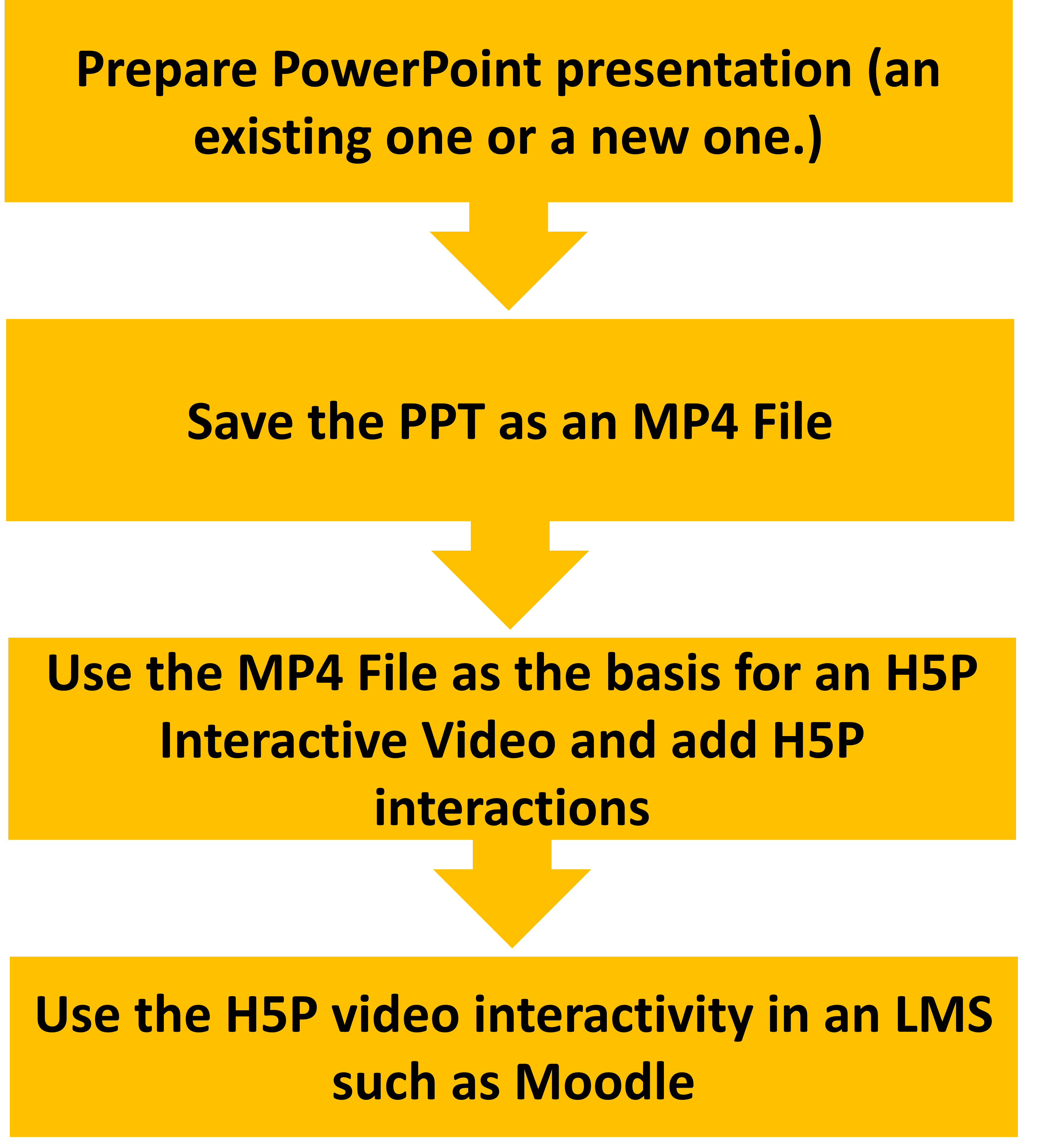
Diagram showing four steps to convert PowerPoint into a gradable H5P courseVisual overview of the workflow from PowerPoint to H5P interactive course.

What You’ll Learn in This Mini-Course

  • How to convert PowerPoint presentations into interactive, gradable H5P modules.
  • How to embed assessments and quizzes to track learner progress.
  • Strategies for designing flexible, updateable digital learning content.
  • Ways to engage learners with interactive online experiences without extra cost.
← Back to Course Index Enroll in the Free Mini-Moodle Course

Fully free course. No sign-up required beyond Moodle enrollment.

Create AI Voices with Clipchamp and improve them with Audacity


Using AI-generated text-to-speech voices in Clipchamp is a game-changer for course creators. Hiring professional voice talent can be expensive, making AI voices a cost-effective alternative. While AI voices may not be perfect, their affordability often outweighs concerns about their artificial nature. In fact, some AI voices can sound even better than human recordings. Although Clipchamp’s built-in voices are good, there are simple ways to make them sound even more natural.

Steps to Generate AI Voices in Clipchamp
  • Open Clipchamp and create a new project.
  • Use the Text-to-Speech tool to choose a voice and language.
  • Adjust speed, pitch, and style to match your presentation tone.
  • Preview, generate the voice track, and sync it with your slides or video.
Steps to Improve AI Voices in Audacity
  • Import the voice track from Clipchamp into Audacity.
  • Perform noise reduction to smooth digital artifacts.
  • Apply EQ and compression to warm and balance the tone.
  • Export the refined audio and reinsert it into your Clipchamp project.

Using H5P for Teaching and Formative Assessment

Welcome to Using H5P for Teaching and Formative Assessment, a hands-on course designed to transform your approach to online teaching. Whether you’re an educator, instructional designer, or training professional, this course equips you with the tools and strategies to design captivating assessments that drive learner engagement and understanding.

Course summary

This practical, hands-on course helps educators and learning professionals create interactive videos, formative assessments and other H5P activities that increase learner engagement and support measurable outcomes.

In this course you will learn to:

  • Create interactive videos that maintain attention and promote reflection.
  • Build formative assessments (multiple choice, drag & drop, fill-in-the-blank).
  • Use ChatGPT to accelerate production of high-quality assessment content.
  • Repurpose assessment items across H5P content types to save authoring time.
  • Design learner-centred experiences that are pedagogically sound and trackable.

Practical resources, templates and step-by-step examples are included. A certificate of completion is available for learners who finish the course activities.

Copyright © MyFutureWay — All rights reserved.
#H5P #EdTech #InstructionalDesign #Moodle #FormativeAssessment #OnlineLearning #ChatGPT

H5P

Create Branching Scenarios with H5P — From PowerPoint to SCORM

Discover how to create branching scenarios in H5P that rival commercial tools like Articulate Storyline, Captivate, or iSpring — without spending a cent. This practical, hands-on course explores three powerful workflows that transform static content into interactive, decision-based learning experiences. Every step includes downloadable examples and video guidance.

💡 What You’ll Learn

  1. H5P Branching Scenarios: Go beyond simple quizzes and videos. Build rich, decision-driven activities ideal for leadership, medical, or workplace simulations.
    Watch the tutorial:
  2. PowerPoint to Interactive Video: Turn ordinary PowerPoint slides into interactive video-based branching scenarios — free and easy.
    Watch the tutorial:
  3. PowerPoint to H5P to SCORM: Convert your PowerPoint into an H5P Course Presentation, then export it as a SCORM package — ready for Moodle or any LMS.
    Watch the tutorial:

🎯 Who Should Enrol

Perfect for educators, trainers, and instructional designers asking:

  • How can I make a branching scenario in H5P?
  • How do I turn my PowerPoint into a branching scenario?
  • How do I create a SCORM package from PowerPoint for free?
  • Can I do all of this with open-source tools?

This course answers all those questions with clear explanations and practical demonstrations — helping you design and deploy professional learning content that looks great, works everywhere, and costs nothing.

The Ghost in the Machine

A Christmas Carol with Biblical Depth

ChatGPT helped me to create a Christmas Carol that reflects the essence of the Bible. Christmas Carols often put us in holiday moods, but Christmas has a deeper meaning for Christians. This AI composition quite moved me, and I continued the discussion with further questions. The full conversation and reflection are shared below.

Watch the video to see how ChatGPT composed a carol that resonates with the deeper message of Christmas. Then, continue your reflection by joining the free Moodle mini-course designed to guide you through this unique AI–faith dialogue.

© MyFutureWay
#Christmas #Faith #Bible #AI #ChatGPT #EdTech

The 60-30-10 PowerPoint Design Rule


I promise to never break this rule again! Since day one when PowerPoint came out, I just dumped stuff on slides and hoped it would work. If I added some of these I thought it would work better!

Slide design example

I sort of vaguely knew there were rules, but didn't bother much about it, trusting my own knowledge of what my audience needed to hear.

It turns out there are some good rules to follow when designing PowerPoint slides.

Moodle's Lesson Activity Easy-peasy or Rabbit hole?

This mini Moodle course contains three pages and a Moodle Lesson Activity. The purpose of the Moodle Lesson activity is not to teach participants real economic decision-making skills. Instead, it demonstrates how Moodle Lesson activities may be created to teach such or similar skills.

Much of what was made in this course was created with PowerPoint. So, the bit of promoting I do below is not out of place.

PowerPoint and H5P Mashup

PowerPoint + H5P: A Winning Combination for Teaching

What happens when you combine a familiar design tool with a cutting-edge interactive platform? You get teaching materials that not only look professional but also keep learners actively engaged. This course shows you how to harness the creative strengths of PowerPoint alongside the interactive power of H5P to design resources that are affordable, flexible, and effective.

Along the way, you’ll learn how to transform PowerPoint into a simple design studio, and how to bring those designs to life in H5P with activities that encourage participation and deepen understanding.

Why PowerPoint outshines Pixar in Animations

Learn to illustrate key economic indicators interactively in PowerPoint. Master Morph transitions, slide linking, and dynamic animations — something even Pixar can’t do!


Discover how PowerPoint can outshine Pixar in teaching complex concepts! In this mini-course, participants explore key economic indicatorsInflation, Interest Rates, Unemployment, and Household Spending — and learn to illustrate their dynamic relationships using interactive PowerPoint animations.

Through Morph transitions, slide linking, and creative interactivity, you’ll master how to:

  • Build dynamic visualizations of economic relationships

  • Design interactive learning experiences in PowerPoint

  • Communicate complex variables clearly and engagingly

By the end of this course, you’ll be able to create interactive, decision-driven animations that make learning economics intuitive — something even Pixar can’t do!

Six Must-have Plugins for Moodle

Must-Have Moodle Plugins for Interactive and Engaging Online Teaching

Explore essential Moodle plugins that can transform your online courses, improve learner engagement, and supercharge your teaching.

Video 1: Level Up, H5P Content Types & Quickmail

Video 2: Board, H5P & Quizventure

Welcome to this hands-on course designed for educators, instructional designers, and trainers who want to make their Moodle courses more interactive and engaging. In this course, you will discover six essential Moodle plugins across two videos that can transform your online teaching experience.

Through practical demonstrations, you’ll learn how to:

  • Use Level Up to gamify your Moodle courses and motivate learners through points, badges, and leaderboards.
  • Import questions and interactive content from H5P to enrich quizzes and activities.
  • Enhance communication with Quickmail for sending targeted messages to your learners.
  • Organize and visualize content with Board plugin for interactive course navigation.
  • Engage learners with Quizventure, a fun, game-based quiz plugin that improves retention.

By the end of this course, you’ll be able to integrate these plugins into your Moodle courses confidently, creating a dynamic, learner-centered environment that promotes better engagement and learning outcomes.

Enroll now to explore these plugins in action and start enhancing your Moodle courses today!

Tags: Moodle plugins, interactive learning, gamification, H5P, Quizventure, Quickmail, Board plugin, online teaching, e-learning, instructional design, Moodle tips, course engagement

Effective PowerPoint Integration into Moodle

Integrating PowerPoint Presentations into Moodle for Engaging Online Learning

This mini-course equips educators with the skills to embed and enhance PowerPoint presentations in Moodle, creating interactive and accessible learning experiences for students. Through instructional videos, interactive exercises, and practical examples, you’ll discover how to enhance slides, embed files, and design dynamic course content that promotes student engagement and participation.

  • Enhance PowerPoint slides with animations, transitions, and multimedia for richer online presentations.
  • Embed PowerPoint files seamlessly within Moodle courses for smooth learner access.
  • Explore alternative presentation formats to improve interactivity and accessibility.
  • Design dynamic course content that promotes student engagement and participation.
  • Apply practical tips to make your online courses more visually appealing and educationally effective.

Tags: Moodle PowerPoint integration, online teaching, e-learning, interactive presentations, educational technology, online learning engagement, PowerPoint in Moodle, course design, instructional design

Create a Narrated Animated Video with PowerPoint and Clipchamp

Hands-On Practice with H5P and Moodle Mini-Course

Learn to create text-to-speech narrations, PowerPoint animations, and interactive videos with Clipchamp — step-by-step, no risk, no cost. This hands-on mini-Moodle course gives practical experience with H5P, Moodle, and key multimedia tools, helping you produce engaging lessons for your students.

Learning Outcomes

  1. Creating Text-to-Speech in Clipchamp:
    • Compose and customize text narration using Clipchamp’s Text-to-Speech feature.
    • Choose from multiple voices and adjust pitch and speed settings.
    • Save and export professional-quality audio clips for your projects.
  2. Creating Animated PowerPoint Videos:
    • Design advanced animations using Morph transitions and visual effects.
    • Export animations as MP4 files for seamless video integration.
  3. Editing Final Video in Clipchamp:
    • Import animation and audio files into Clipchamp.
    • Synchronize speech, video, text overlays, and background music.
    • Produce a polished final video ready for online learning platforms.

Keywords: H5P tutorials, Moodle mini-course, Clipchamp video editing, PowerPoint animations, eLearning content creation, text-to-speech narration

Use LUMI to create and edit H5P Packages

Master H5P with Lumi

Master H5P with Lumi in this free mini-course. Create engaging, interactive learning content and integrate it seamlessly into your LMS.

Course summary

Mini-course

This mini-course is designed for educators, instructional designers, and trainers who want to improve learner engagement using H5P and the Lumi application.

In this course you will learn to:

  • Install & Navigate Lumi: Download, install, and start using Lumi on Windows, Mac, or Linux.
  • Create Basic H5P Content: Build interactive activities like quizzes and reflection exercises.
  • Explore Advanced Features: Use multimedia, branching scenarios, and feedback tools.
  • Implement Best Practices: Design accessible, user-friendly, and pedagogically sound content.
  • Integrate H5P with LMS: Deploy activities into Moodle or any LMS supporting SCORM and track learner performance.

By the end of this course, you will have the skills to create interactive content that improves learning outcomes and student motivation.

Resources: Download Lumi

Copyright © MyFutureWay — All rights reserved.

Grow your Email Marketing business by hosting Moodle courses

Permission-Based Email Marketing Mini-Course

Use a free mini-Moodle course to attract leads, build relationships, and gain permission-based insights that grow your business.

Course summary

Elevate your permission-based email marketing strategy with a practical, interactive approach. Instead of static PDFs, offer prospects a mini-Moodle course that teaches tangible skills, showcases your product, and gathers meaningful feedback.

In this course you will:

  • Appreciate the Role of Direct Email Marketing
  • Understand the Concept of ‘Permission-Based Marketing’
  • Identify Actions to Grow an Email Database Ethically
  • Use Moodle to Deliver Educational Incentives
  • Complete a Ten-Question Quiz to test knowledge

Redeem your Udemy coupon to access your free mini-Moodle course. Learners give consent for follow-up via the platform’s email tools, with the option to withdraw at any time.

Earn this badge when you complete:

Moodle Magnetizer Badge

Copyright © MyFutureWay — All rights reserved.

Tutor LMS vs Moodle

Tutor LMS vs Moodle — Mini-Course

See how the free Tutor LMS WordPress plugin measures up against Moodle for interactivity, learner engagement, and course delivery.

Course summary

Welcome to this free mini-course comparing two popular approaches to online learning delivery: Tutor LMS (WordPress plugin) and Moodle (open-source LMS). This concise, evidence-based exploration is designed for educators, trainers, and instructional designers.

What this course covers:

  • Side-by-side feature comparison of Tutor LMS (free/basic) and Moodle.
  • Seven practical tasks implemented in both platforms to test real-world interactivity and learner workflows.
  • Examples of course design, assessment, multimedia support, and export/import options for re-use.
  • Evaluation of learner engagement tools — quizzes, branching, progress tracking, and activity completion.
  • Practical guidance on when to choose WordPress + Tutor LMS versus a full LMS like Moodle.
Copyright © MyFutureWay — All rights reserved.

Line Path Animations in PowerPoint

Line Path Animations in PowerPoint — 4 Creative Techniques

Learn 4 ways to create line path animations in PowerPoint to illustrate processes, stages, or movement. Perfect for educators, trainers, and designers!

Course Overview

Unlock the full potential of PowerPoint animations with this hands-on mini-course! You’ll learn four ways to create line path animations that move objects through multiple stages, perfect for illustrating processes, workflows, or the progression of ideas.

In this course, you will:

  • Master line path animations to visually communicate multi-stage processes
  • Explore practical examples for education, training, and presentations
  • Discover creative ways to enhance slides and increase learner engagement
  • Learn techniques that go beyond standard animations to create dynamic, professional visuals

Whether you are an educator, instructional designer, or business professional, this course gives you the skills to make your presentations more engaging, clear, and visually compelling. By the end, you’ll see why PowerPoint’s animation capabilities continue to amaze — and how to use them to make your content truly interactive.

Keywords: PowerPoint animations, line path animation tutorial, slide design tips, eLearning presentations, teaching with PowerPoint, interactive slides, presentation design skills

PowerPoint Animations

Animations in PowerPoint — 5 Essential Skills

Discover five essential techniques to make your PowerPoint presentations more dynamic, polished, and engaging. Learn how to combine animations, time them perfectly, and keep your audience’s attention without overwhelming them.

Course image created in PowerPoint and saved as animated GIF

What You’ll Learn

After completing this free mini-course, you’ll be able to make your PowerPoint presentations stand out by:

  1. Adding different types of animation to your slides
  2. Applying multiple animations to the same object
  3. Synchronizing animations with precise timing
  4. Using shortcuts to streamline your animation workflow
  5. Designing animations that engage without overwhelming your audience

If you complete the course, you will earn this badge:

Animations in PowerPoint Badge

Course Activities

  • Page: Types of Animations
  • Page: More Than One Animation at a Time
  • Page: Timing is Everything
  • Page: Major Shortcut to Save Time
  • Page: Don’t Break Brains!
  • Quiz: Animations in PowerPoint

Tip: Make sure you mark the pages as ‘done’.

Have Your Own Moodle Course

Want to try out some of the techniques shared here in your own course? Your journey begins here. I’m making space available on this site to people investing in my Udemy course. Reach out via the message board or email me at johan@myfutureway.co.za.

Keywords: PowerPoint animations, animation tutorial, presentation design, interactive slides, eLearning with PowerPoint, visual storytelling, teaching with PowerPoint

H5P Drag and Drop Interactivity

How to Create H5P Drag-and-Drop Interactivity in Moodle (with PowerPoint examples)

Discover how to use H5P drag-and-drop activities in Moodle, designed with PowerPoint, to test higher-order learning outcomes. This free mini-course goes beyond the usual “fruit-and-veg” drag-and-drop examples, showing you how to design activities that build real engagement and align with Bloom’s Taxonomy.

  • Build drag-and-drop exercises that go beyond trivial examples.
  • Use non-trivial subject matter (e.g., supply & demand graphs) to align activities with Bloom’s Taxonomy levels.
  • Design background images and draggable answer elements with PowerPoint.
  • Configure drop zones, assign correct answers, and handle scenarios with multiple valid solutions.
  • Recognize common challenges and how to update your interactivity when content changes.

Creating Your Drag-and-Drop Activity

  1. Design the background image: Create question text in PowerPoint, export the slide as a .png, and use it as the backdrop.
  2. Make draggable elements: Save graphs or visuals as .png images and add them to the activity.
  3. Set up drop zones: Overlay drop zones on the background where answers can be placed.
  4. Assign correct answers: Map each draggable element to its correct drop zone (with flexibility for multiple valid responses).
Example of a Demand and Supply curve drag-and-drop activity

An example drag-and-drop activity with demand and supply curves.

Key Considerations

One drawback of this method is that if you later change text elements in your questions, you must update the PowerPoint slide, re-export it, and replace the background image in H5P. While slightly repetitive, the process is still manageable and yields highly engaging results.

Why this matters: With thoughtful design, drag-and-drop can be used to assess application, analysis, and evaluation skills—not just recall. Complete the course and earn your mini-course badge for recognition of your achievement.


Host your own H5P-enabled Moodle course

Want to build your own drag-and-drop activities like this? Consider hosting your own Moodle course on this platform. Featuring the full spectrum of Moodle resources and H5P content types, your journey begins here. Space is available to those investing in my Udemy course. Let’s chat: email me at johan@myfutureway.co.za.


Explore the examples, try the exercises, and see how H5P drag-and-drop can transform your teaching and training materials.

Suggested tags:
H5P drag-and-drop Moodle interactivity Bloom’s Taxonomy PowerPoint graphics Interactive learning

Keywords: H5P drag-and-drop, Moodle drag-and-drop activity, interactive learning with H5P, Bloom’s Taxonomy assessment, PowerPoint + H5P, create interactive exercises.

Insert Web content in course

Add interactive web content to your LMS.

Use H5P I-Frame Embedder or hand-written I-frame HTML to insert Geogebra, simulations, or web pages into Moodle, Canvas, or Blackboard.

Course overview

This mini-course shows educators and trainers how to embed external content in Moodle and other LMS. You’ll learn both the H5P I-Frame Embedder and a few lines of raw I-frame HTML to bring in tools, simulations, and interactive pages.

What you will learn

  • H5P I-Frame Embedder: Insert external content quickly and responsively.
  • Write your own I-frame code: Embed pages, widgets, and simulations with a few lines of HTML.
  • Examples: Geogebra, gas simulations, and even embedding a live Wikipedia page.
  • Works across LMS: Reliable methods for Moodle, Canvas, and Blackboard.
  • Best practice: Tips for accessibility, sizing, and avoiding security pitfalls.

Course structure

Includes demo examples, step-by-step tutorials, and a short multiple-choice quiz. Earn a badge by completing all activities.

Who should take this course?

Perfect for teachers, instructional designers, and trainers who want to enrich online courses with external interactivity—without buying new authoring tools.

Get started

Click “Continue” to create a free account and begin.

Suggested tags:
I-frame embed H5P IFrame Embedder embed web content Geogebra Moodle

Keywords: I-frame embed, H5P IFrame Embedder, Moodle embed, Canvas embed, Blackboard embed, interactive content, Geogebra.

Get the Prezi-effect in PowerPoint

Recreate the Prezi Zoom Effect in PowerPoint

Want the energy of Prezi but the familiarity of PowerPoint? This free mini-course shows you how to combine zooming, panning, and non-linear navigation to achieve a Prezi-style experience—without leaving PowerPoint.

Inside This Mini-Course

  • Zoom & Pan with Morph: Use PowerPoint’s Morph transition to smoothly move across slides and objects.
  • Non-linear storytelling: Create branching paths with slide links so learners can choose their journey.
  • Smart object resizing: Scale text, shapes, and images to guide attention and create a cinematic feel.
  • Know the limits: Learn where PowerPoint for the web struggles with Morph and linking, and how to work around it.

Download the sample project and test the effects for yourself:


Why Add the Prezi Effect?

Traditional linear slides can feel flat. By weaving in Prezi-like navigation and animation, you create dynamic, memorable experiences. Educators can let students explore topics interactively, trainers can highlight complex workflows, and professionals can deliver presentations that keep audiences engaged until the last slide.

Key Lessons You’ll Walk Away With

  1. Apply Morph transitions to create seamless zoom-and-pan effects.
  2. Design non-linear pathways so viewers can control navigation.
  3. Use resizing tricks to simulate focus shifts and close-ups.
  4. Balance creativity with clarity—keeping presentations powerful but easy to follow.
Want your own Moodle course with interactive content?

This platform supports H5P and the full range of Moodle resources. If you’d like space to host your own courses, your journey begins here. Space is reserved for educators investing in my Udemy course. Let’s connect: email me at johan@myfutureway.co.za.

Moodle Site and Course Themes

Explore Moodle Site and Course Themes

This mini-course introduces Moodle themes, helping you customize your site and courses without coding. By completing it, you will:

  • Understand the purpose of themes in Moodle
  • Learn to select and apply themes to courses
  • See practical examples of themes in action
  • Apply CSS tweaks as a non-programmer
  • Follow best practices for course layout and design

Earn the Moodle Themester Badge by completing all course activities:

Moodle Themester badge

Badge criteria: Complete all activities:
  • "Page – Introducing Themes"
  • "Page – The considerations"
  • "Page – Other things to consider"
  • "Quiz – Moodle Themes Quiz"

This course helps educators create a polished, engaging Moodle environment, enhancing both online teaching and learner experience.

Host your own Moodle course with themes and H5P

Start here to access full Moodle and H5P features. I provide space for educators investing in my Udemy course. Contact me via the message board or email at johan@myfutureway.co.za.

Jamboard is Dead: What to do Instead

Facilitating Online Collaboration Without Jamboard

This mini-course explores practical alternatives for online collaboration in Moodle, now that Jamboard use is declining. You will learn to embed Google Slides for interactive teamwork and leverage two Moodle plugins: Sticky Notes and Board.

Complete the included quiz to earn your collaboration badge!

Collaboration badge

Course Activity

  • Quiz – Facilitate Collaboration Online with Google Slides

Discover new ways to engage learners collaboratively online while gaining hands-on experience with Moodle and interactive tools.

Host Your Own Moodle Course

Start experimenting with H5P, Google Slides, and Moodle features here. I provide space for educators investing in my Udemy course. Connect via the message board or email johan@myfutureway.co.za.

H5P Interactive Book

Retirees Guide to Entrepreneurship – H5P Interactive Book Demo

This mini-course demonstrates H5P’s Interactive Book using The Retirees Guide to Entrepreneurship as an example. Learn how AI and gamification can combine to create engaging, interactive learning experiences.

What You’ll Explore

  • Interactive Book Creation with AI: Structure, design, and populate content using generative AI like ChatGPT.
  • Formative Assessments: Build meaningful quizzes and activities directly inside your H5P book.
  • Gamification Elements: Enhance engagement with simple game mechanics integrated via AI and Scratch.

This course offers practical guidance for educators and course creators eager to expand their Moodle toolkit, make courses more interactive, and motivate learners effectively.

Tip: Watch the video above to see these techniques in action and remember to support free resources by liking, subscribing, and commenting on YouTube!

Easy Moodle Makeover

Transform Your Moodle Site with HTML & CSS Tweaks

This mini-course complements the video above. Learn to apply targeted HTML and CSS tweaks in Moodle, giving your courses a more polished, professional, and engaging appearance. These improvements empower educators to transform online teaching environments effectively.

Hands-On Practice

Course Structure

  • Page 1 – "Hello World": Introduction to basic Moodle tweaks.
  • Page 2: Demo of a simple element adjustment on a Moodle site.
  • Quiz: Test your new skills.
  • Forum: Discuss and get feedback from fellow learners.

Complete all sections to earn a badge recognizing your effort. If you’re new, consider the Moodle Mastery course for a quick induction.

Start Enhancing Your Moodle Courses Today!

Apply practical tweaks, explore creative H5P uses, and make your online courses visually engaging and learner-friendly.

Unleash Your Online Teaching Potential

Welcome to MyFutureWay – Your Hub for Free Companion Courses on Moodle, H5P, PowerPoint, and Other EdTech

MyFutureWay is more than a Moodle site—it’s a gateway to a growing collection of free companion courses that complement videos on my YouTube channel. Explore practical ways to use PowerPoint, Moodle, H5P, and other free EdTech tools to make online learning more engaging and interactive.

What You’ll Discover

  • PowerPoint Courses: Transform slides into cinematic, interactive learning experiences.
  • Moodle Enhancements: Apply non-technical methods to improve course design, responsiveness, and engagement.
  • H5P Interactive Content: Learn to create and implement H5P activities across Bloom’s Taxonomy.
  • Free EdTech Tools: Experiment with innovative, no-cost tools to enhance teaching and learning.

Why This Matters

Most MyFutureWay YouTube videos have a free companion Moodle course. This page is the central hub—enabling you to continue learning beyond the video, engage in structured, hands-on practice, and track your progress.

Host Your Own Course

Educators can request free hosting for their own courses on this platform. Share your content, reach global learners, and gain visibility while contributing to interactive online education.

Get Started Today

Browse, enroll, and explore companion courses to enhance your teaching. Each course creates a personal learning path and ensures you receive updates when new resources are added.

Wordcloud with Classpoint

ClassPoint and Word Cloud – Mini-Course Coming Soon

Thank you for visiting! This course is not fully developed yet. However, you can enroll now so that you are notified as soon as content is added. You need a free account on this site to enroll. (Guest access is disabled because interactive learning is best achieved through forum communication below.)

Learning Outcomes

  1. Install and Integrate ClassPoint: Understand the essential steps for downloading, installing, and registering ClassPoint within PowerPoint to enhance presentations seamlessly.
  2. Sign In and Navigate: Recall the procedures for signing in and signing out of ClassPoint, ensuring efficient user management and navigation.
  3. Use Word Cloud for Interactive Sessions: Demonstrate the setup and execution of an interactive group session using ClassPoint’s Word Cloud feature. Manage live participant responses, display them on-screen, and compile a comprehensive document capturing collective insights for sharing with participants and stakeholders.

Enroll now and be ready to engage as soon as this course goes live! In the meantime, join the forum below to start interacting with fellow learners.

H5P Course Presentation Interactivity

Turn PowerPoint into Gradable, Interactive H5P Course Presentation Activities

Welcome to the Frontline Heroes demonstration course accompanying the video above. This mini-course showcases how PowerPoint slides can be converted into interactive H5P course presentations inside Moodle.

Why Explore This Course?

  • Discover the potential of H5P Course Presentations for teaching and training.
  • See practical examples that you can adapt to your own lessons or courses.
  • Get ideas for building interactive, engaging, and visually rich learning experiences.

This is just the beginning — more pages and examples will be added regularly. Check back to explore new content and features as they go live.

Watch the video, try out the activities, and experience how H5P can transform learning into a truly interactive experience!

H5P Branching Scenario

H5P Branching Scenarios: Decision-Making with Apollo 13

Explore interactive decision-making with H5P branching scenarios using the Apollo 13 mission. Free, hands-on, and fully downloadable for educators and trainers!

This mini-course demonstrates how H5P branching scenarios can teach complex problem-solving skills. Using Apollo 13 as a case study, you’ll see exactly how to build lessons that put learners in the driver’s seat.

In this free Moodle course, you can:

  • Interact with a real branching scenario inspired by Apollo 13
  • Download and reuse the H5P file for your own teaching
  • Understand how expert decision-making unfolds in high-stakes situations
  • Learn practical strategies to design immersive, decision-driven learning

Whether you are an educator, trainer, or instructional designer, this course provides a ready-to-use, step-by-step example of creating engaging H5P activities that boost learner engagement and retention.

Enroll now to experience H5P branching scenarios in action and bring real-world problem-solving into your classroom or training program!

H5P Interactive Video

Discover Interactive Learning with H5P in Moodle

Experience a Moodle course packed with H5P interactive videos and practical tools for educators—ready to use in your own teaching.

Course Overview

Step into an interactive Moodle experience that goes beyond standard lessons! Explore H5P video activities and digital tools that make online learning more engaging and effective. Whether you came here from our or found us through a search, you’re in the right place.

What You’ll Discover

  • Hands-on H5P videos you can try directly in Moodle.
  • Techniques to develop additional digital skills for teaching.
  • Access to a forum where you can connect with fellow educators.

Getting the Most Out of This Course

  1. Watch the introductory video to see H5P in action.
  2. Explore the embedded H5P activities.
  3. Join the forum and share your ideas or teaching experiences.
  4. Stay enrolled to get updates when new resources and activities are added.

Start Learning Today

Create your free account and start exploring interactive teaching with H5P in Moodle. Your journey to more engaging and effective online learning begins here!

Suggested tags:
H5P Moodle interactive video online teaching digital teaching tools

Keywords: H5P in Moodle, interactive video, online teaching tools, digital teaching strategies, Moodle courses for educators.

The H5P Course (various interactions)

Free H5P Mini-Course in Moodle

Learn how to create interactive lessons with H5P — from videos and quizzes to essays, accordions, and Bloom’s-aligned activities.

What’s inside?

  • Interactive videos on science topics with embedded checkpoints.
  • Reusable H5P questions synced across Moodle activities.
  • Essay and Accordion content types for reflection and structure.
  • Design mapped to Bloom’s Taxonomy for deeper learning.

Why join?

This free mini-course gives you ready-to-use examples that save time and boost engagement. Perfect for teachers, trainers, and instructional designers who want interactive, reusable, and affordable content in Moodle.