Meet PassionFinder
Lesson 2 — Meet PassionFinder
Estimated time: 15–20 minutes
Learning Outcomes
By the end of this lesson you will be able to:
- understand what PassionFinder is designed to do;
- understand Best–Worst reflection activities;
- install the plugin;
- create your first PassionFinder instrument;
- import and export PassionFinder JSON instruments;
- use AI to generate reusable PassionFinder JSON instruments.
Section 1
What is PassionFinder?
PassionFinder helps respondents discover what naturally energises them.
Unlike a traditional questionnaire where every item is rated independently, PassionFinder presents a small group of options and asks respondents to choose:
- the item they feel most drawn to, and
- the item they feel least drawn to.
Making these trade-offs often reveals preferences that simple rating scales cannot. PassionFinder is therefore ideal for reflective conversations such as:
- Career guidance
- Creator Entrepreneurship
- Church ministry placement
- Leadership development
- Coaching
- Mentoring
- Professional development
It is not intended to diagnose personality, make recruitment decisions, or replace professional judgement. It is a structured reflection tool that helps respondents recognise patterns in what energises them.
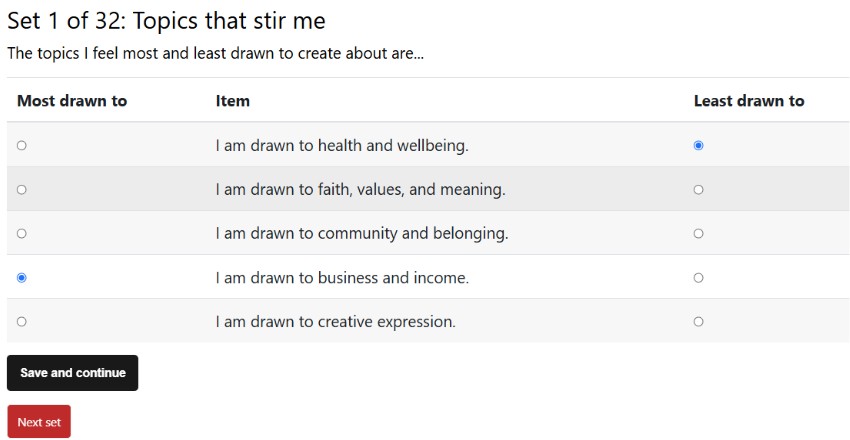
Respondents choose the option that attracts them most and the option that attracts them least. These relative choices reveal preference patterns.
Section 2
Installing PassionFinder
You can obtain PassionFinder in two ways.
Option 1
Download the latest version from Moodle.org.
Option 2
Download the plugin ZIP file from the Resources section of this course.
The Resources section also contains:
- README.md
- sample JSON instruments
- AI prompt templates
- demonstration reports
- future updates
Install the plugin in the normal Moodle way via:
Site administration → Plugins → Install plugins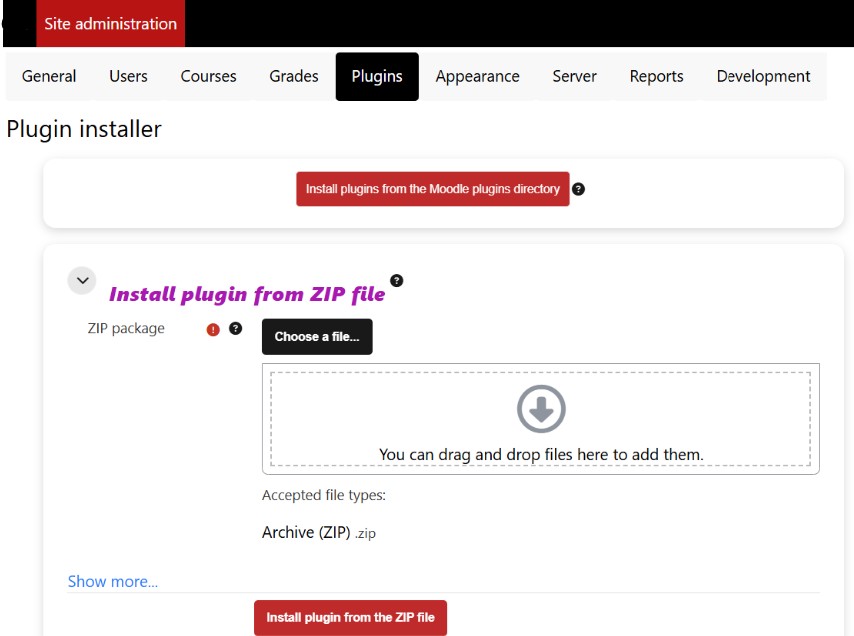
Section 3
Understanding Best–Worst Reflection
Traditional questionnaires ask:
"How much do you like this?"
PassionFinder asks something different. It asks:
"Which of these choices attracts you the most?" AND "Which attracts you the least?"
PassionFinder does not present items completely at random. Instead, it generates balanced comparison groups so that each item appears approximately the same number of times throughout the activity. This gives every item a fair opportunity to be selected as "Most" or "Least" preferred while still presenting respondents with a variety of comparison groups.
As a result, respondents may occasionally see familiar combinations of items. This is intentional. The repeated comparisons help ensure that preferences emerge from several independent opportunities rather than from a single comparison.
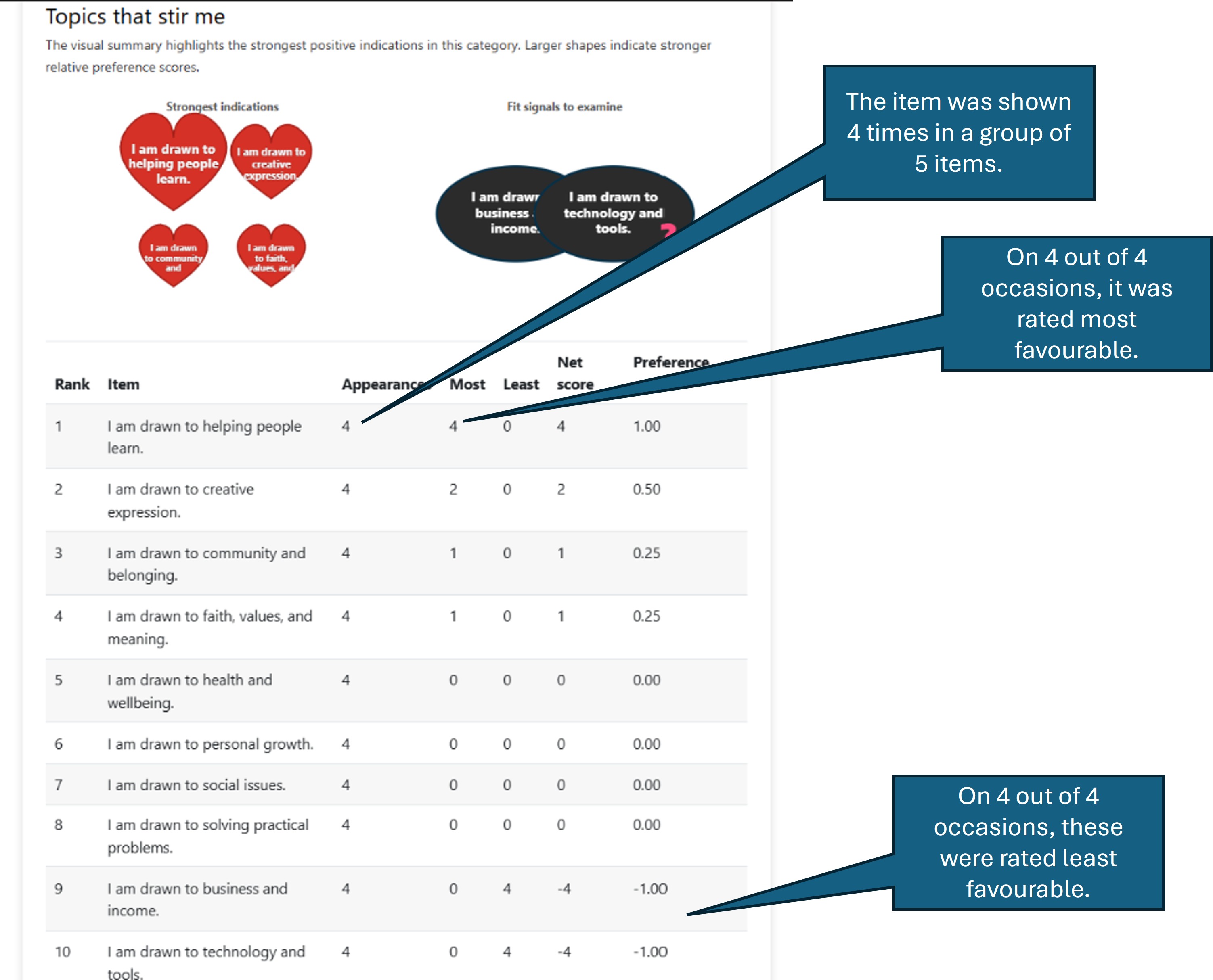
PassionFinder results.
Section 4
Building your first PassionFinder instrument
Every PassionFinder instrument consists of only a few building blocks.
- Categories
- A prompt for each category
- Items within each category
- Global "Most" and "Least" labels
- Report settings
For example
Category
Work Environment
Prompt
The work environments I would feel most and least comfortable in are...
Items
- Quiet office
- Busy café
- Remote work
- Small team
- Open-plan office
The plugin automatically generates the choice sets presented to respondents.
Pair coverage and learner effort
The settings Items per screen and Screens per category affect both the amount of information collected and the effort required from the learner.
Suppose a category contains 10 items and PassionFinder displays 5 items on each screen.
A useful design goal is for every item to appear on a screen with every other item at least once. This is called pair coverage. It does not mean that the learner explicitly compares every pair; rather, every pair has appeared together within at least one Most/Least choice set.
With a balanced choice-set design 6 screens are sufficient for every pair to appear together at least once. (More...)
Section 5
The real power of PassionFinder
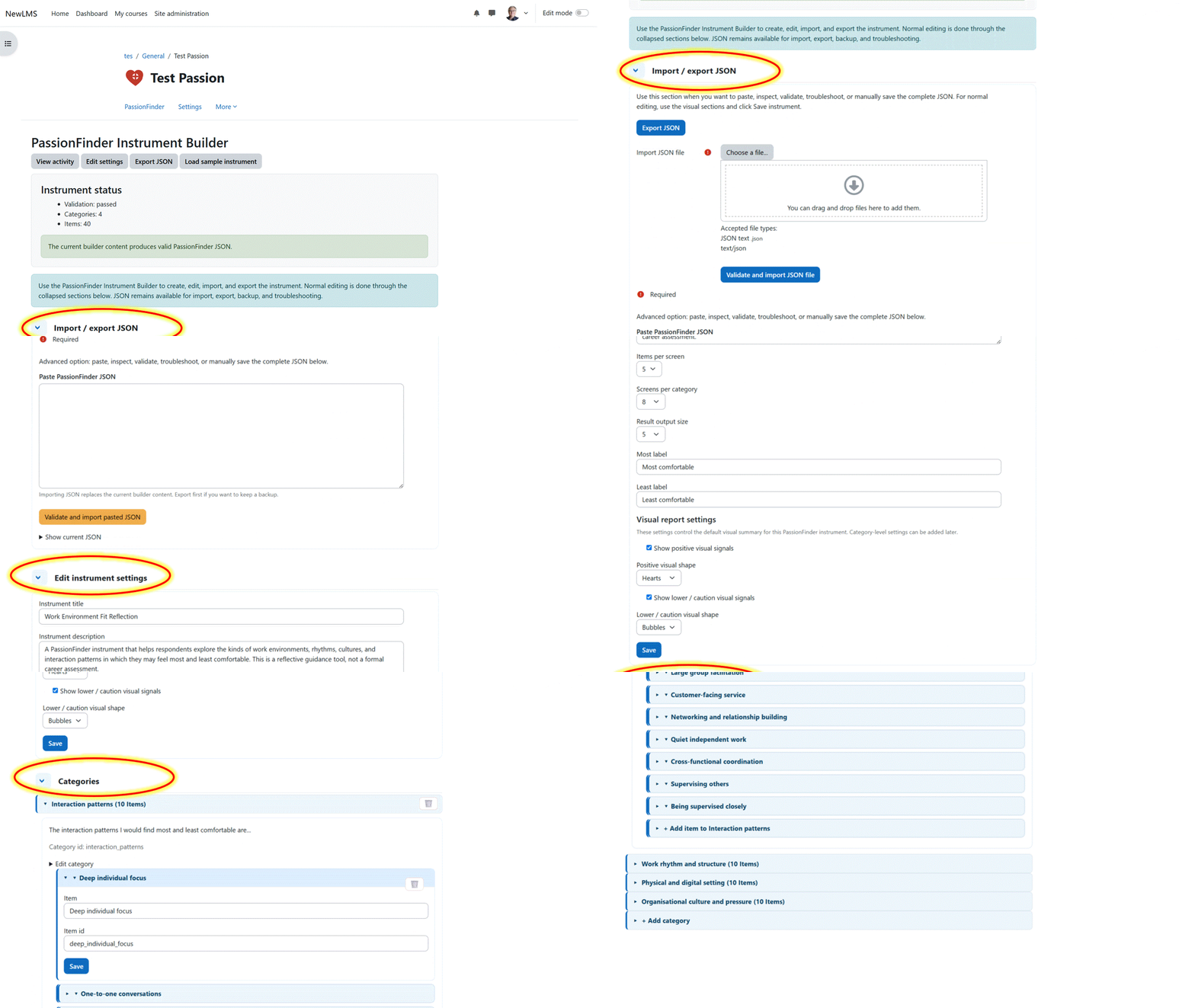
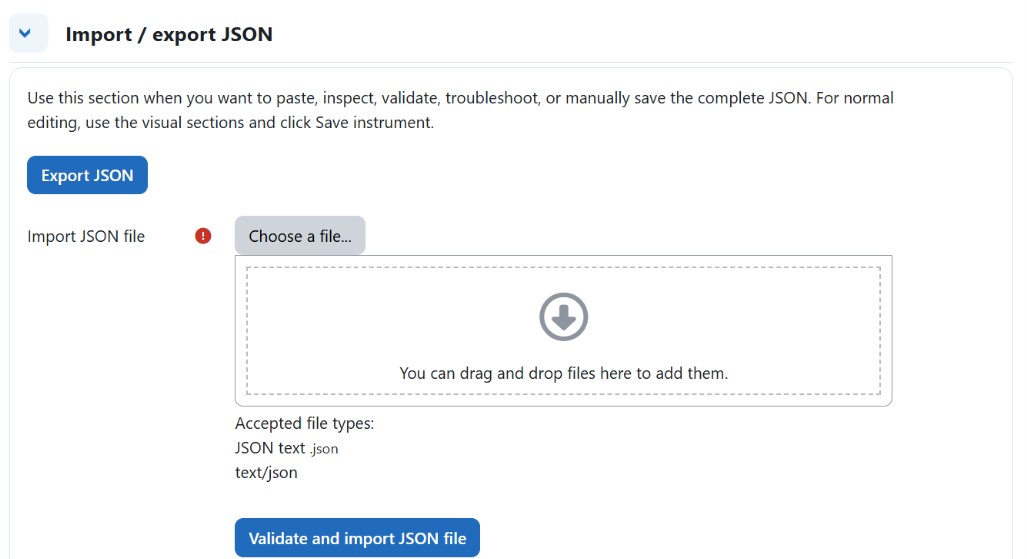
PassionFinder is completely JSON-powered, if you want import ready-made assessments. The alternative is to create your assessment by hand using the Instrument Builder. The output of PassionFinder is a JSON file.
Every teacher-created instrument can be exported as a JSON file.
The exported JSON contains:
- instrument title
- description
- settings
- categories
- prompts
- items
- report settings
- metadata
The exported JSON never contains:
- student names
- student responses
- grades
- attempts
- personal data
This makes PassionFinder instruments portable and reusable across Moodle sites.
Section 6
AI-assisted Instrument Design
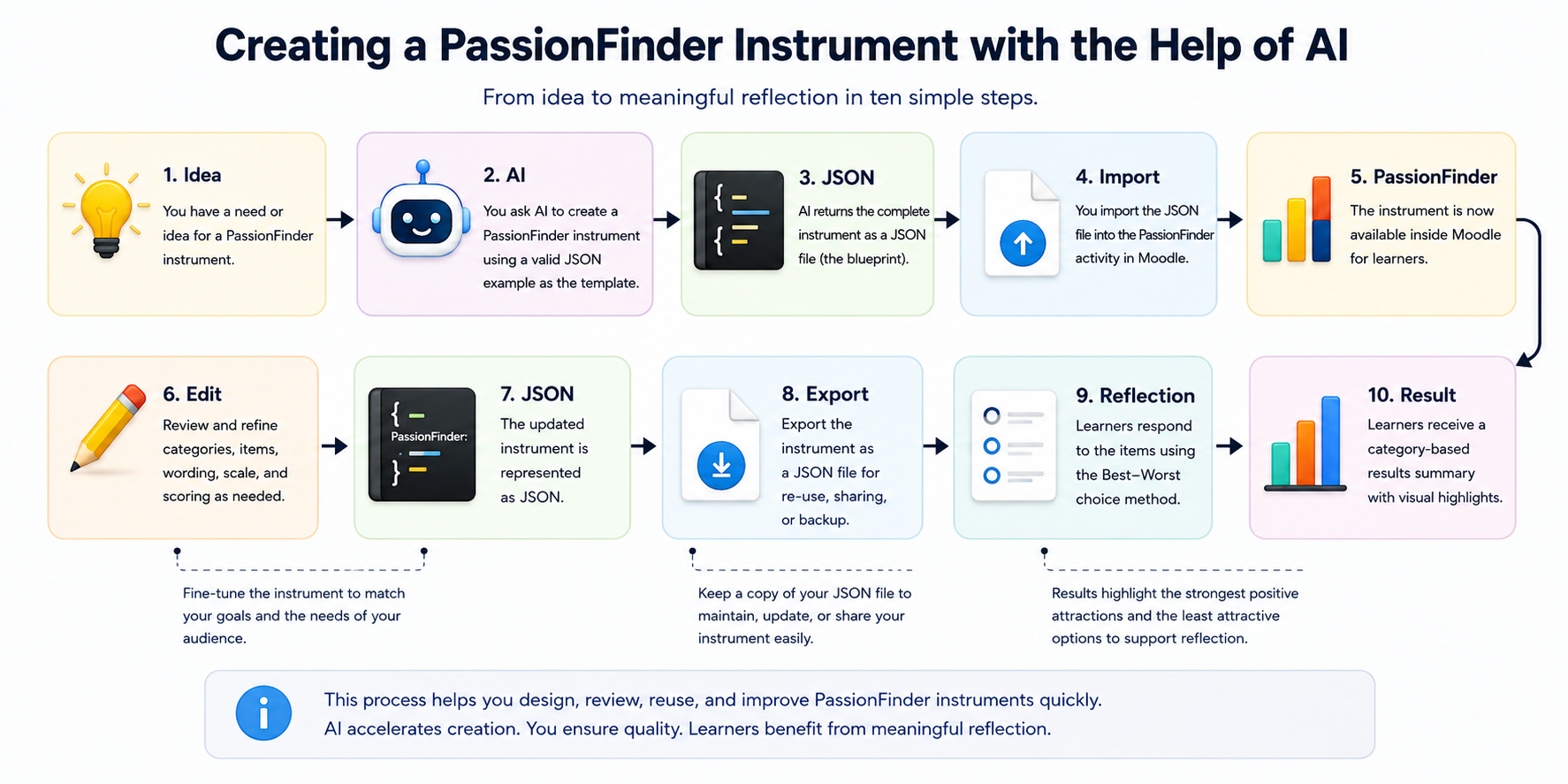
Creating a PassionFinder instrument manually is straightforward. Creating one with AI is dramatically faster.
Instead of writing every category and every item yourself, you can ask AI to generate a complete JSON instrument. For example:
Create a PassionFinder instrument that helps Creator Entrepreneurs reflect on the kinds of audiences they are naturally drawn to serve.
or
Create a PassionFinder instrument for Church Ministry that helps respondents discover which ministry opportunities they feel most drawn toward.
Because PassionFinder uses a consistent JSON schema, AI can produce a complete draft in seconds. You then review, edit and improve the instrument before importing it into Moodle.
Example Prompt
Copy the prompt in the left-hand column and attach the PassionFinder README.md file when prompting your AI assistant. The README.md contains the complete JSON schema together with example JSON, enabling the AI to generate a valid PassionFinder instrument. The AI should return a downloadable .json file containing text similar to that shown in the right-hand column. If you are curious, you can open the downloaded file with a plain text editor such as Notepad to view and inspect its contents before importing it into PassionFinder.
Create a valid JSON instrument for the Moodle plugin mod_passionfinder. Create the instrument in the form of a downloadable .json file that I may import into a Moodle plugin.

Use the schema described in the attached README.md.

PURPOSE
Describe the purpose of the PassionFinder instrument.

AUDIENCE
Describe the learners who will complete this instrument.

CONTEXT
Describe the course, workshop, counselling process or ministry where this instrument will be used.

CREATE
[number] categories
[number] passion items per category

The instrument should:
• use short, clear passion statements
• describe things the learner may enjoy, value or feel drawn toward
• contain one idea per item
• use positive, first-person wording
• group related items into meaningful categories
• avoid clinical, diagnostic or recruitment claims
• avoid items that are too similar to each other
• be suitable for a MaxDiff-style choice activity where learners choose what feels most and least like them

IMPORTANT
Return ONLY valid JSON.
Do NOT include Markdown.
Do NOT include explanations.
Do NOT include comments.
Do NOT include code fences.
Do NOT include student responses or personal data.
{
  "schema": "mod_passionfinder",
  "schemaVersion": 2,
  "instrument": {
    "title": "My Passion in Service",
    "intro": "This activity helps you reflect on the kinds of people, needs and service opportunities that most strongly draw your attention."
  },
  "options": {
    "showpositive": true,
    "shownegative": true,
    "positivevisual": "hearts",
    "negativevisual": "bubbles",
    "showdatatable": true
  },
  "categories": [
    {
      "id": "people_i_feel_drawn_to_serve",
      "name": "People I Feel Drawn to Serve",
      "prompt": "Which of these groups do you feel most drawn to serve?",
      "positive_label": "Most like me",
      "negative_label": "Least like me",
      "items": [
        {
          "id": "children",
          "text": "I enjoy helping children feel safe, valued and encouraged."
        },
        {
          "id": "young_people",
          "text": "I am drawn to supporting young people as they grow and make life choices."
        },
        {
          "id": "older_people",
          "text": "I enjoy spending time with older people and learning from their stories."
        }
      ]
    }
  ]
}
ChatGPT prompt on one side | Imported PassionFinder Builder on the other
Section 7
Reading the Visual Report
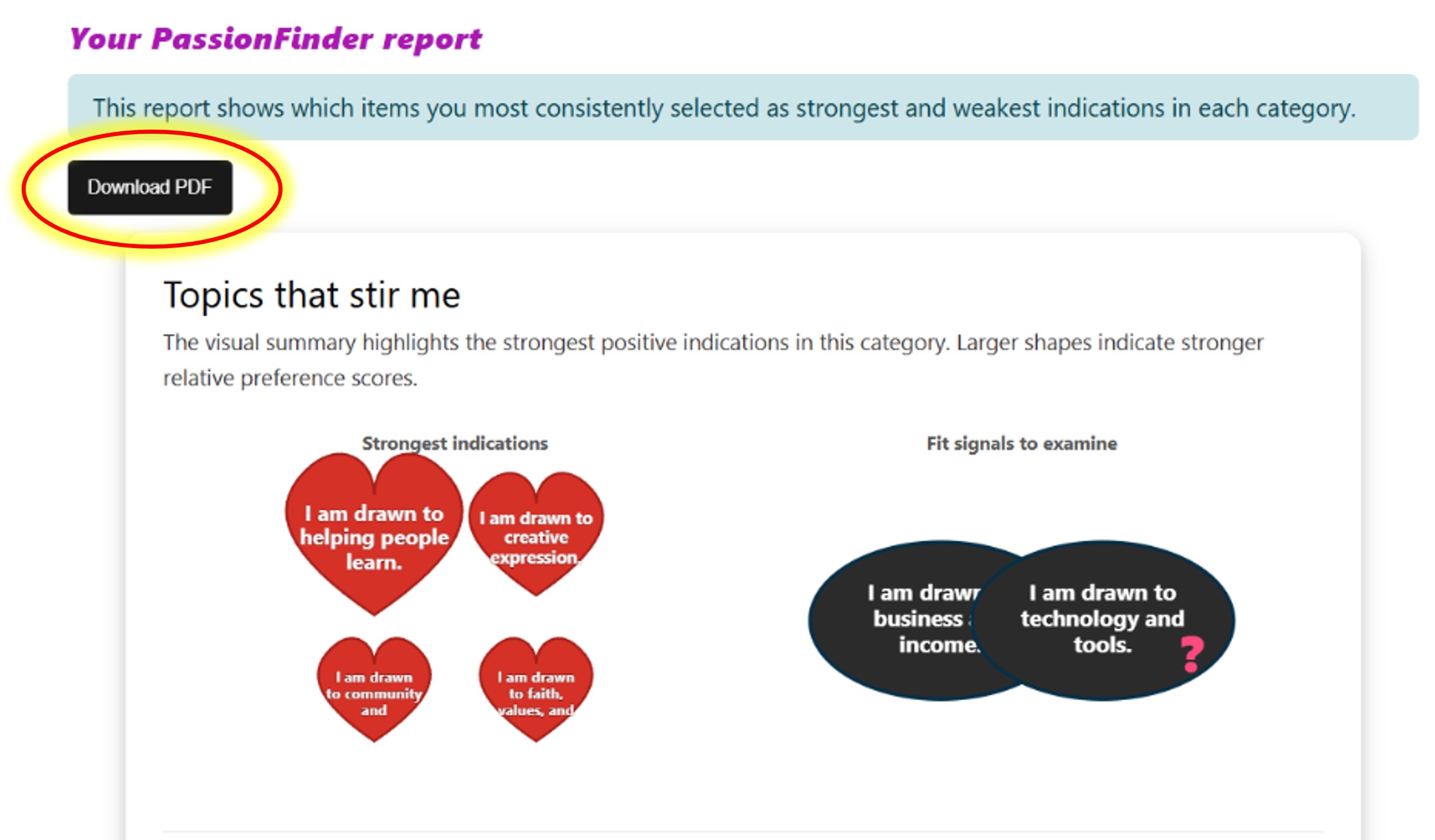
After completing the activity, respondents receive a visual summary. The report can display:
❤️ Strong positive indications
⬤ Lower or caution signals
Detailed data table. Positive indications highlight areas where respondents consistently felt drawn to.
Lower signals should not be interpreted as absolute no-go areas. Instead they identify topics that deserve further discussion before making decisions.
Section 8
Downloading PDF Reports
Every completed PassionFinder attempt can also be downloaded as a structured PDF.
The PDF contains:
- strongest indications
- caution signals
- tables
- educational disclaimer
This makes PassionFinder useful for:
- coaching sessions
- mentoring
- ministry conversations
- career guidance
- portfolio evidence
rather than relying on browser screenshots.
Section 9
Good AI Prompting
Text
The best AI prompts provide:
- a valid PassionFinder JSON example
- the README
- a description of the audience
- the educational purpose
Avoid asking AI:
"Create a questionnaire."
Instead ask:
Create a valid JSON instrument for the Moodle plugin mod_passionfinder using the attached README and JSON example. The instrument should help first-year university students reflect on the work environments where they may flourish.
AI will draft the structure.
You remain responsible for reviewing:
- wording
- fairness
- cultural appropriateness
- educational suitability
- ethical use
before importing it into Moodle.
See Section 6 above for example AI prompt.
Summary
You have learned that PassionFinder is:
✓ teacher-authored
✓ JSON-powered
✓ AI-assisted
✓ reusable
✓ based on Best–Worst reflection
✓ designed to support guided conversations rather than high-stakes decisions.
Mini Activity
Download one of the sample PassionFinder JSON instruments from the Resources section.
Import it into your own PassionFinder activity.
Open the Builder and examine:
- the categories
- the prompts
- the items
- the report settings
Then use the AI Prompt Terminal to generate a completely different PassionFinder instrument for your own educational context.
Import the JSON into Moodle and compare the result with the original.