SkillsFinder
Lesson 3 — Meet SkillsFinder
Estimated time: 15–20 minutes
Learning Outcomes
By the end of this lesson you will be able to:
- understand what SkillsFinder is designed to do;
- understand its two-stage competency reflection process;
- install the plugin;
- create your first SkillsFinder instrument;
- understand categories, competencies and rating dimensions;
- import and export SkillsFinder JSON instruments;
- use AI to generate reusable SkillsFinder JSON instruments.
Section 1
What is SkillsFinder?
SkillsFinder helps respondents recognise and reflect on abilities they believe they already have.
Rather than asking learners to rate a very long list of abilities one by one, SkillsFinder divides the reflection into two stages.
In the first stage, respondents browse a broad bank of competencies and select a limited number that they believe describe them.
In the second stage, they examine only those selected competencies in greater depth by rating them across several dimensions chosen by the teacher.
This makes SkillsFinder particularly useful for reflective conversations such as:
- Career guidance
- Creator Entrepreneurship
- Leadership development
- Church ministry and volunteer placement
- Coaching
- Mentoring
- Professional development
- Study and learning pathway discussions
SkillsFinder is not an aptitude test or psychometric assessment. It does not prove that a person possesses a particular skill.
Instead, it helps respondents identify competencies they believe they have and then reflect more carefully on how strongly those competencies appear in different areas of their lives.
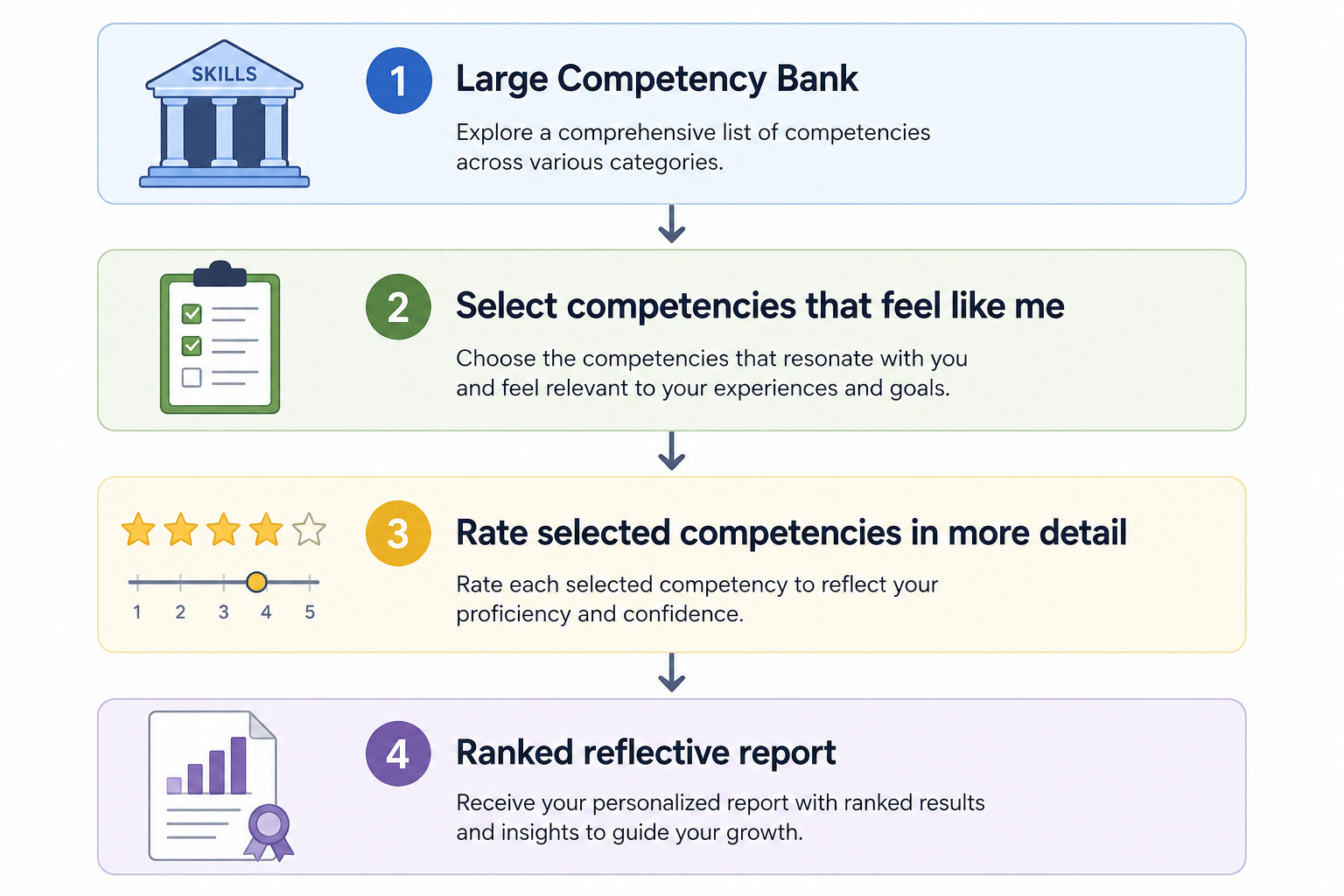
SkillsFinder begins broadly and then narrows the reflection. Respondents first recognise possible competencies and then examine their strongest choices more carefully.
Section 2
Installing SkillsFinder
You can obtain SkillsFinder in two ways.
Option 1
Download the latest version from Moodle.org.
Option 2
Download the plugin ZIP file from the Resources section of this course.
The Resources section also contains:
- README.md
- sample JSON instruments
- AI prompt templates
- demonstration reports
- future updates
Install the plugin in the normal Moodle way via:
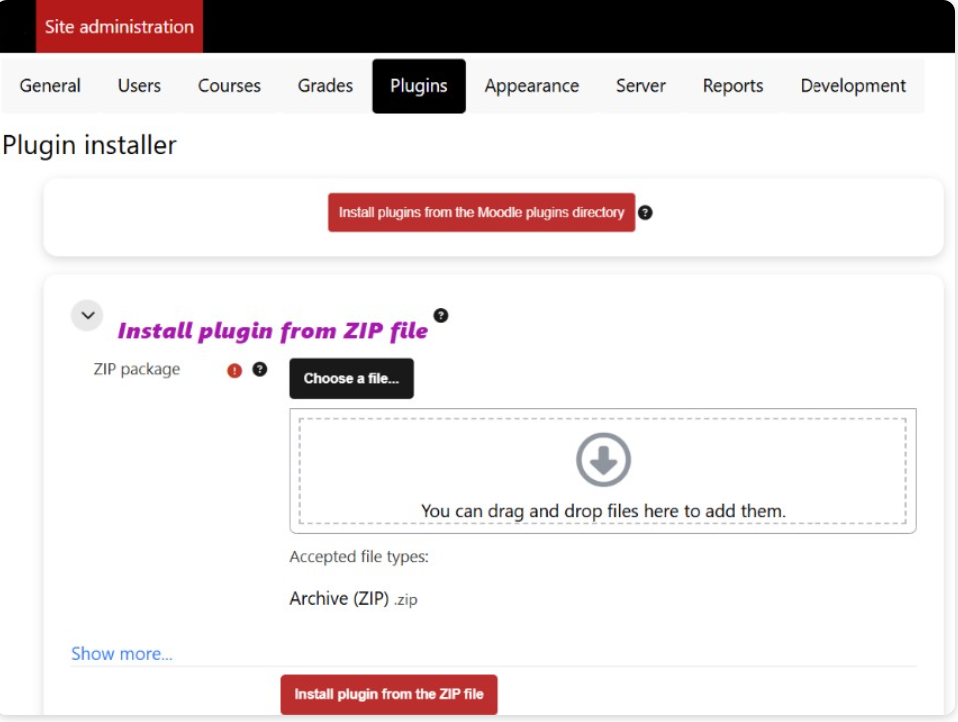
Section 3
Understanding Two-Stage Reflection
A traditional skills questionnaire might present a long list and ask:
"How good are you at this?"
SkillsFinder takes a different approach.
It first asks something closer to:
"Which of these abilities do you believe you have?"
Suppose the teacher creates a bank of 60 competencies.
The respondent might be asked to select exactly 10.
We can describe this as:
N = 60 available competencies
n = 10 competencies to select
This first pass encourages recognition rather than detailed judgement. The learner looks across a broad range of possibilities and identifies abilities that appear relevant.
After the learner has selected the required number, the unselected competencies disappear from the working set.
Only the selected competencies continue to the second stage.
In the second stage the respondent rates every selected competency across teacher-defined dimensions such as:
- Enjoyment — I excel at and enjoy using this ability.
- Confidence — I feel confident when I use this ability.
- Recognition by others — Other people have noticed this ability in me.
- Development interest — I would like to develop this ability further.
This distinction is important.
A person may recognise that they have an ability without necessarily enjoying it. Another competency may be highly enjoyable but still need development. A third may be something other people repeatedly recognise in the person.
SkillsFinder allows these different aspects of a competency to be considered separately ======== -->.
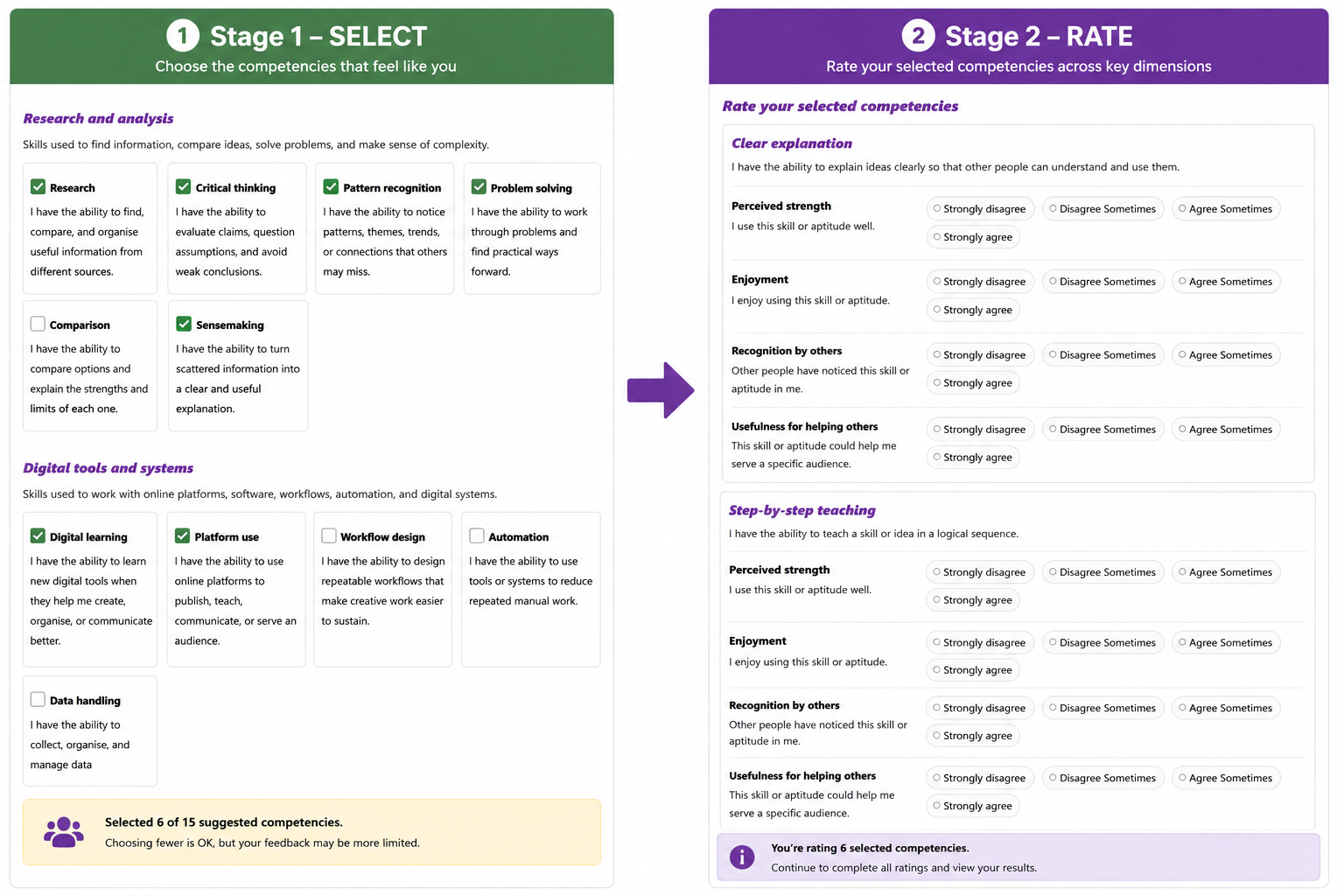
The first stage asks, "Which abilities might describe me?" The second stage asks, "What do these selected abilities look like when I examine them more carefully?"
Section 4
Building your first SkillsFinder instrument
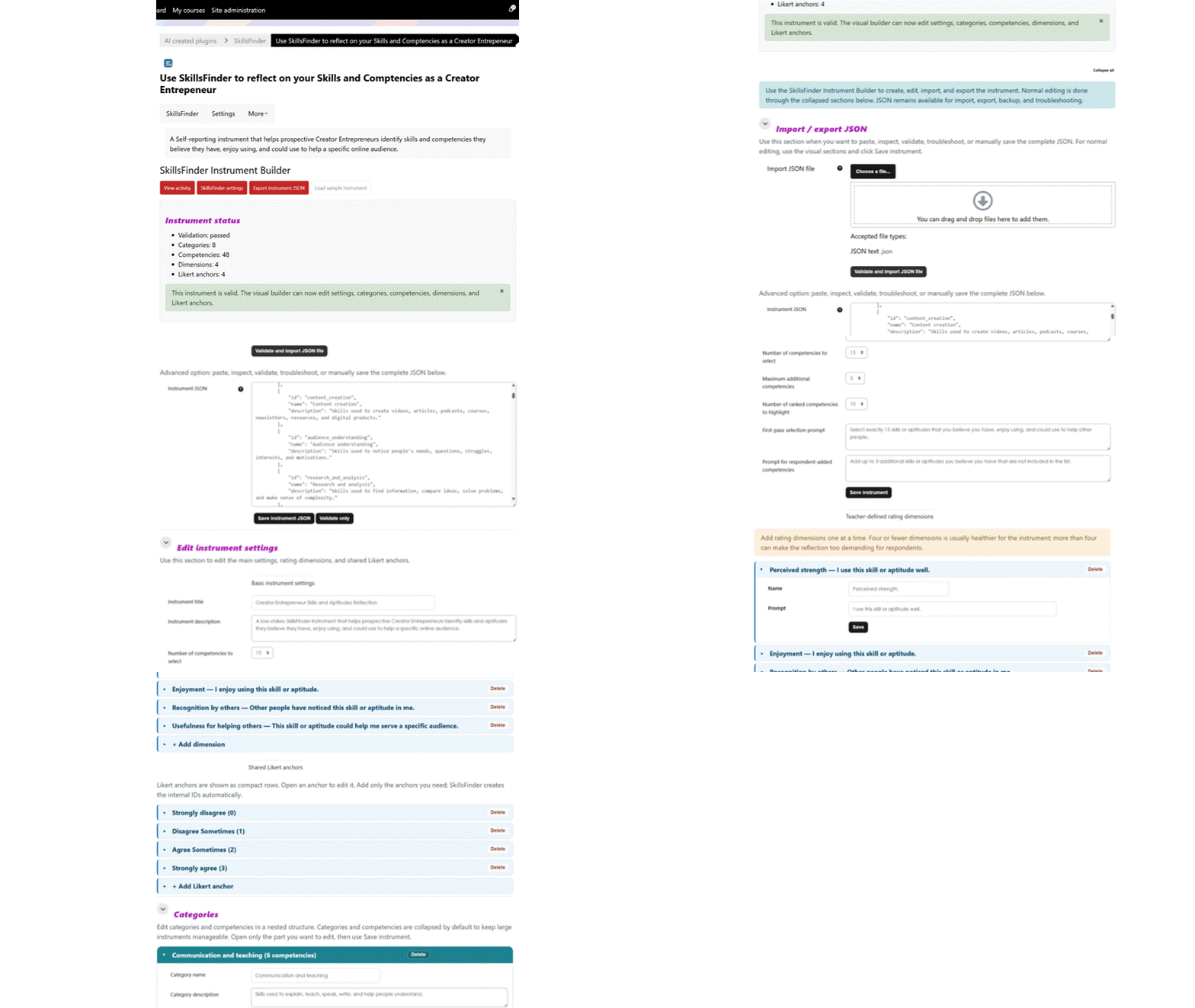
Every SkillsFinder instrument consists of a small number of building blocks.
- Instrument title and description
- A first-pass selection prompt
- The number of competencies respondents must select
- Optional categories
- A competency bank
- A shared rating scale
- Teacher-defined dimensions
- Optional respondent-added competencies
- Report settings
For example:
First-pass prompt
Select exactly 10 competencies from the list below. Choose abilities you believe you have and enjoy using.
Category
Working with people
Competency
Coaching
I have the ability to prepare others for a task, teach them, encourage them, and help them develop.
Dimension
Enjoyment
I excel at and enjoy using this ability.
Shared rating scale
- Strongly disagree
- Disagree
- Agree
- Strongly agree
Categories make large competency banks manageable
Categories are optional. They do not determine the respondent's result.
Their purpose is to organise a large competency bank into sensible browsing groups such as:
- Working with people
- Working with information
- Working with tools and systems
- Creating and designing
- Leading and organising
- Helping and serving
- Communicating
- Practical and physical abilities
A learner may select competencies from several different categories. SkillsFinder ranks the competencies themselves rather than trying to give the respondent a category label.
Respondents can discover abilities you forgot to include
No teacher-created competency bank can anticipate every ability possessed by every learner.
SkillsFinder can therefore allow respondents to add their own competencies.
Someone might add:
- repairing bicycles;
- arranging flowers;
- caring for animals;
- interpreting between languages;
- organising transport;
- maintaining sound equipment;
- creating social media images;
- cooking for large groups.
These learner-added competencies are not merely notes. They enter the second stage and are rated across the same dimensions as competencies selected from the teacher-created bank.
Section 5
The real power of SkillsFinder
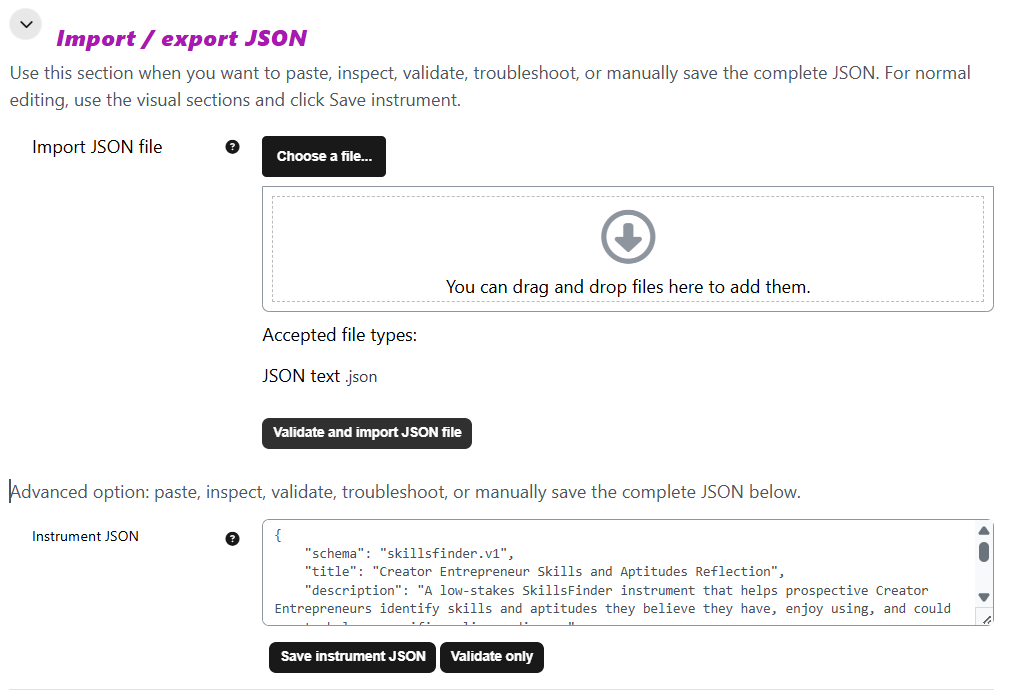
SkillsFinder can be built manually using the Instrument Builder, but it becomes especially powerful when you use JSON to create and share ready-made instruments.
Every teacher-created instrument can be exported as a JSON file.
The exported JSON can contain:
- instrument title and description
- first-pass prompt
- selection count
- custom competency settings
- rating scale
- categories
- competencies
- dimensions
- report settings
- metadata
The exported JSON does not contain:
- student names
- student responses
- grades
- attempts
- respondent-added competency responses
- personal data
This makes SkillsFinder instruments portable and reusable.
You can create an instrument on one Moodle site, export it, share it with another teacher, import it somewhere else and continue editing it there.
Section 6
AI-assisted Instrument Design
Creating a SkillsFinder instrument manually is straightforward.
Creating a large competency bank manually, however, can take considerable time.
This is where AI becomes particularly useful.
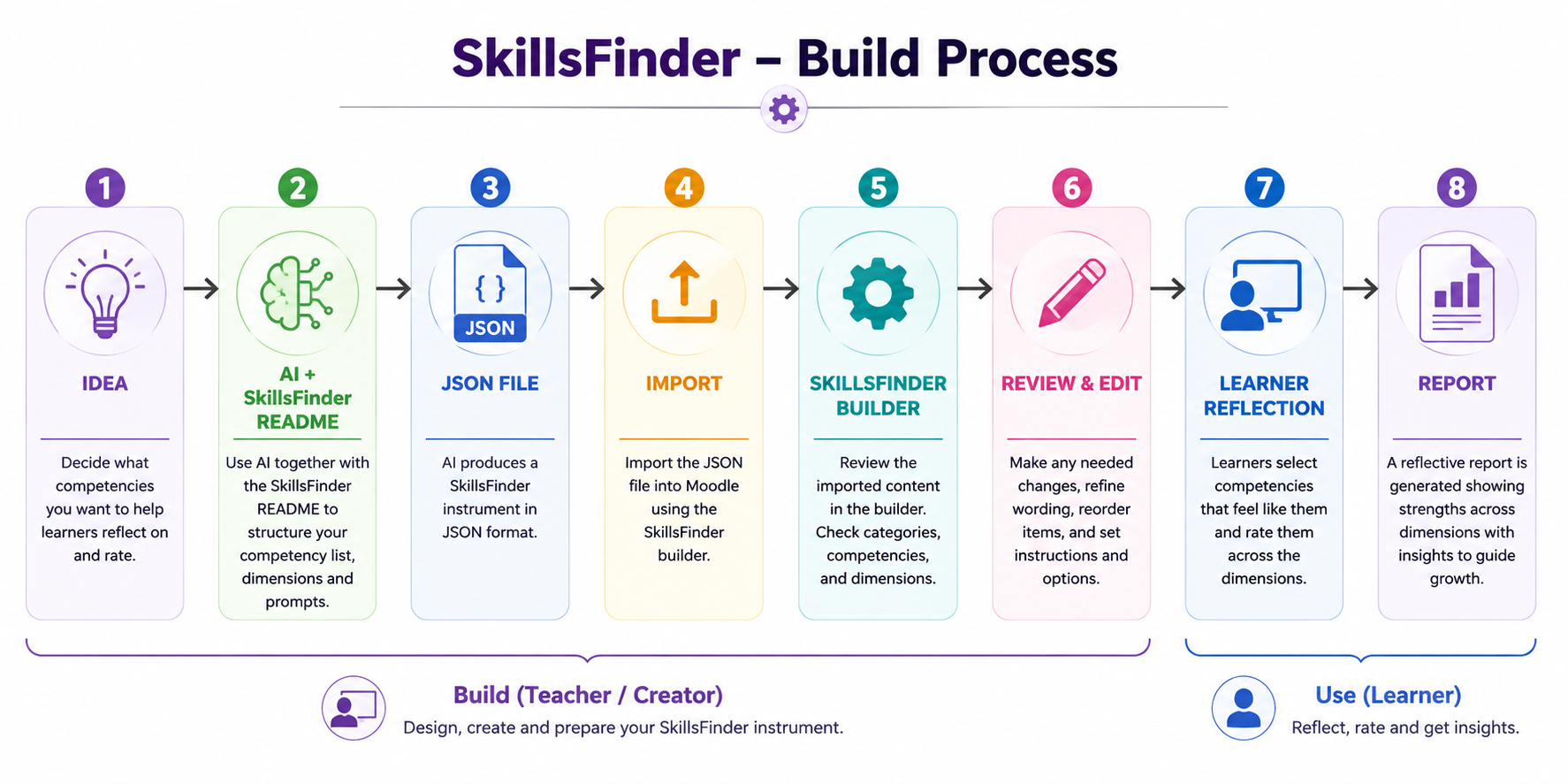
Instead of writing every category, competency and dimension yourself, you can ask an AI assistant to generate a complete JSON draft.
For example:
Create a SkillsFinder instrument that helps Creator Entrepreneurs identify competencies they could use to create useful online content, courses, services or digital products.
or:
Create a SkillsFinder instrument for a church that helps volunteers recognise abilities they could contribute to different areas of ministry and community service.
or:
Create a SkillsFinder instrument for first-year university students to identify competencies they already possess and areas they would like to develop.
Because SkillsFinder uses a consistent JSON structure, AI can create the initial instrument very quickly.
You then review, edit and improve the instrument before importing or using it with learners.
Example Prompt
Copy the prompt in the left-hand column and attach the SkillsFinder README.md file when prompting your AI assistant. The README.md contains the complete JSON structure together with example JSON, enabling the AI to generate a valid SkillsFinder instrument. The AI should return a downloadable .json file containing text similar to that shown in the right-hand column. If you are curious, you can open the downloaded file with a plain text editor such as Notepad to view and inspect its contents before importing it into SkillsFinder.
Create a valid JSON instrument for the Moodle plugin mod_skillsfinder. Create the instrument in the form of a downloadable .json file that I may import into a Moodle plugin.

Use the schema described in the attached README.md.

PURPOSE
Describe the purpose of the SkillsFinder instrument.

AUDIENCE
Describe the learners who will complete this instrument.

CONTEXT
Describe the course, workshop, coaching, career, ministry, volunteer or training context.

CREATE
[number] optional categories
[number] competencies in total
Require learners to select exactly [number] competencies
Create [number] rating dimensions

The instrument should:
• use short, clear competency titles
• describe each competency as a first-person ability statement
• group related competencies into meaningful categories
• use a shared Likert-type scale for all dimensions
• allow respondent-added competencies only if appropriate
• avoid clinical, diagnostic or psychometric claims
• avoid recruitment or high-stakes selection claims
• use wording appropriate for the stated audience
• contain a broad enough competency bank to encourage genuine reflection

IMPORTANT
Return ONLY valid JSON.
Do NOT include Markdown.
Do NOT include explanations.
Do NOT include comments.
Do NOT include code fences.
Do NOT include student responses or personal data.
{
  "metadata": {
    "title": "Creator Competency Reflection",
    "description": "A SkillsFinder instrument for identifying competencies that may support creator entrepreneurship.",
    "schema": "mod_skillsfinder",
    "schemaVersion": 1,
    "createdBy": "ai_draft_review_required",
    "containsStudentData": false
  },

  "settings": {
    "selectioncount": 10,
    "firstpassprompt": "Select exactly 10 competencies from the list below. Choose abilities you believe you have and enjoy using.",
    "allowcustomcompetencies": true,
    "maxcustomcompetencies": 3,
    "customcompetencyprompt": "Add any additional abilities you believe you have that were not included in the list above.",
    "resultdepth": 10
  },

  "scale": [
    {
      "value": 0,
      "label": "Strongly disagree"
    },
    {
      "value": 1,
      "label": "Disagree"
    },
    {
      "value": 2,
      "label": "Agree"
    },
    {
      "value": 3,
      "label": "Strongly agree"
    }
  ],

  "categories": [
    {
      "id": "working_with_people",
      "name": "Working with people",
      "description": "Abilities involving helping, guiding, teaching and supporting people."
    }
  ],

  "competencies": [
    {
      "id": "coaching",
      "title": "Coaching",
      "description": "I have the ability to prepare others for a task, teach them, encourage them, and help them develop.",
      "categoryid": "working_with_people"
    }
  ],

  "dimensions": [
    {
      "id": "enjoyment",
      "name": "Enjoyment",
      "prompt": "I excel at and enjoy using this ability."
    }
  ]
}
ChatGPT prompt on one side | Example SkillsFinder JSON on the other
Section 7
Reading the Visual Report
After completing the second stage, respondents receive a ranked competency report.
Each selected or learner-added competency receives ratings across the teacher-defined dimensions.
SkillsFinder can then calculate:
- a score for each dimension;
- an overall average across dimensions;
- a ranking within the respondent's selected competency set.
The important phrase is within the respondent's selected competency set.
A competency appearing near the bottom of the report does not mean that the learner lacks that ability.
It simply means that other competencies in the learner's own selected group received stronger ratings across the dimensions used in this particular instrument.
Similarly, a highly ranked competency is not proof of formally measured aptitude. It is a strong reflective indication worth examining further.
Respondent-added competencies deserve particular attention because they may reveal abilities that the teacher never anticipated when building the original competency bank.
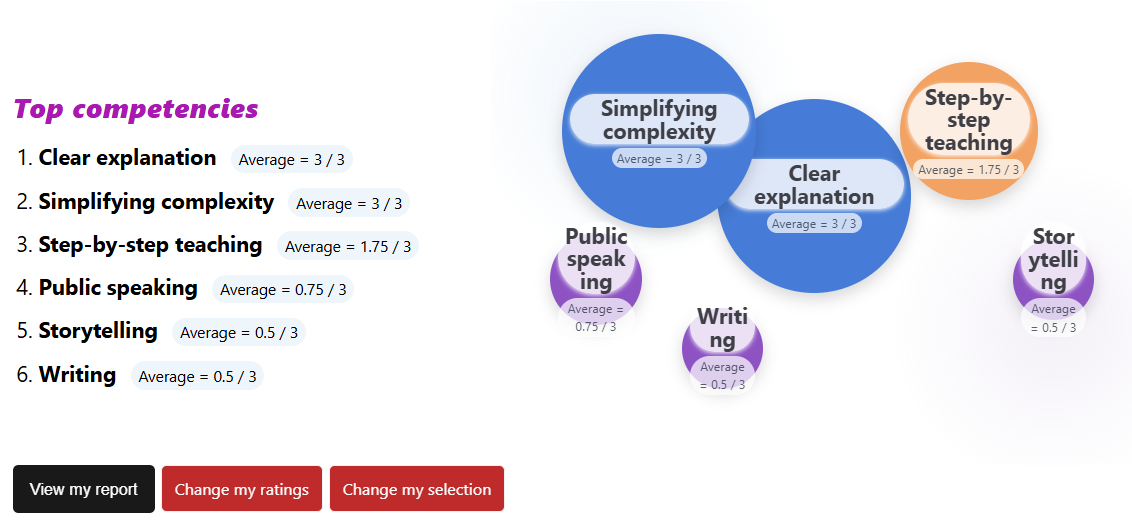
A lower-ranked competency is not a failure. SkillsFinder compares competencies the respondent has already chosen as relevant to themselves.
Section 8
Downloading PDF Reports
Every completed SkillsFinder attempt can also be downloaded as a structured PDF report, depending on the activity configuration and permissions.
The PDF can include:
- activity name
- respondent name
- course
- submitted date
- first-pass selection count
- number of respondent-added competencies
- ranked competency summary
- dimension breakdown
- top competencies per dimension
- educational disclaimer
This makes SkillsFinder useful for:
- coaching conversations
- mentoring
- career guidance
- professional development
- study planning
- ministry and volunteer conversations
- portfolio reflection
The PDF is generated as a structured Moodle report rather than simply capturing a screenshot of the browser page.
Section 9
Good AI Prompting
The best AI prompts provide:
- the SkillsFinder README
- a valid SkillsFinder JSON example
- a clear description of the audience
- the educational purpose
- the context in which the instrument will be used
- a sensible number of competencies and dimensions
Avoid asking AI:
"Create a skills questionnaire."
That tells the AI almost nothing about the structure or educational purpose you require.
Instead ask something like:
Create a valid JSON instrument for the Moodle plugin mod_skillsfinder using the attached README and JSON example. The instrument should help first-year university students identify competencies they believe they already possess and competencies they would like to develop further. Create 6 browsing categories, 60 competencies, require respondents to select exactly 10, and use four rating dimensions.
AI can draft the structure.
You remain responsible for reviewing:
- accuracy
- wording
- fairness
- cultural appropriateness
- language level
- age appropriateness
- educational suitability
- ethical use
before importing the instrument into Moodle.
AI is exceptionally useful for generating a broad first draft, but it should not make the final educational decisions for you.
See Section 6 above for an example AI prompt.
Summary
You have learned that SkillsFinder is:
✓ teacher-authored
✓ based on two-stage competency reflection
✓ broad in the first stage and deeper in the second
✓ able to include respondent-added competencies
✓ JSON-powered
✓ AI-assisted
✓ reusable
✓ designed to support reflection and guided conversations rather than high-stakes decisions.
Mini Activity
Download one of the sample SkillsFinder JSON instruments from the Resources section.
Import it into your own SkillsFinder activity.
Open the Instrument Builder and examine:
- the first-pass prompt
- the selection count
- the categories
- the competency bank
- the rating scale
- the dimensions
- the respondent-added competency settings
Then preview or complete the activity yourself.
Notice the change between the two stages:
- First select competencies from the broad bank.
- Then rate only those selected competencies across the dimensions.
Finally, use the AI prompt in Section 6 to generate a completely different SkillsFinder instrument for your own educational context.
Import the resulting JSON into Moodle and examine how quickly an entirely new competency reflection activity can be created.