Understand how a Moodle Lesson works
LESSON ACTIVITY IN MOODLE WITH AI · SECTION 1
Understand how a Moodle Lesson works
Build a small working example with content, questions, feedback and choices. Learn the most important habit: create the pages, connect the jumps, then test every route.
Moodle’s Lesson activity can adapt to learners’ choices and answers. It supports straightforward sequences as well as different routes through explanations, practice and feedback.
Start with the video
The video demonstrates adding a Lesson, creating content and question pages, setting jumps and checking the learner’s experience. Watch once for an overview, then revisit it as you build.
Useful moments: 0:38 Add the Lesson · 3:01 Plan its structure · 3:39 Understand jumps · 5:02 Fix the paths · 6:12 See the student view.
Build your first seed, step by step
1Plan a small learning route
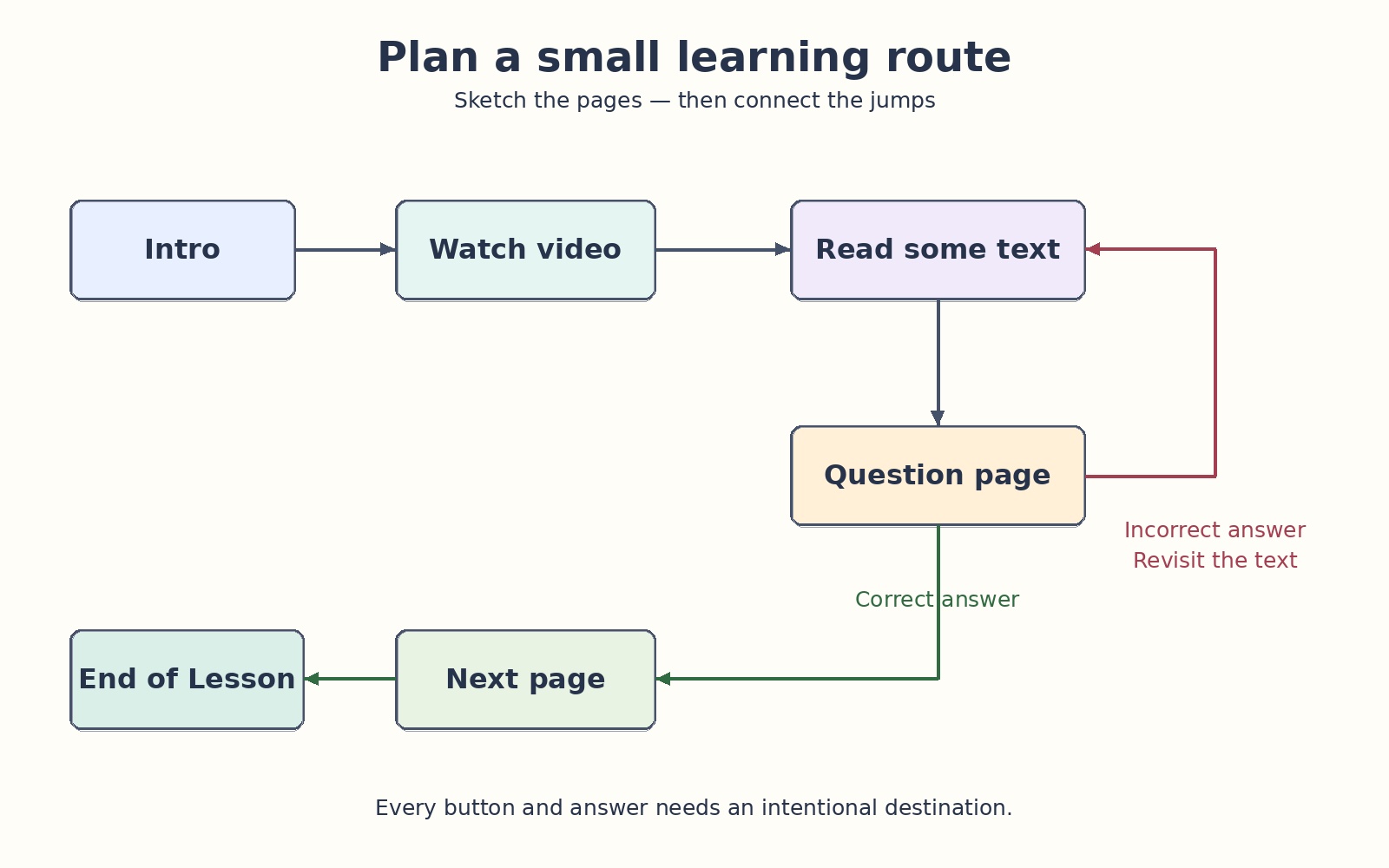
Sketch your pages and their connections before opening the editor. For your first seed, use:
- An introduction offering two choices: read an explanation or watch a video.
- A text page and a video page.
- A question that both routes lead to.
- Feedback and an intentional ending.
Give each page a clear, distinctive title. These titles help you select destinations when setting the jumps.
2Add the Lesson activity
Turn editing on in your course. Select Add an activity or resource → Lesson. Enter a meaningful name and, if useful, a short description.
Review appearance, availability, flow control, grading and activity completion. Use the help icons for unfamiliar settings. Keep your first seed simple; you can change its settings later.
Select Save and display to begin adding pages.
3Create your content pages
Add a content page, enter its title and teaching material, and define the navigation buttons.
- Description: the text on the button, such as “Watch the video”.
- Jump: the destination reached when the learner selects it.
A button’s wording does not set its destination. You must choose the jump separately.
4Leave temporary jumps while building
How can you jump to a page that you have not created yet? This is a common source of confusion when building a first Lesson.
A destination page’s title becomes available after you create and save it. Until then, leaving a jump set to This page is fine as a temporary placeholder.
Create the remaining pages first, then return to connect them. If you leave that placeholder unchanged, a navigation button may simply keep the learner on the same page.
5Add questions and explanatory feedback
Add a question page and select a question type. Enter the question, answers where appropriate, and feedback that explains the responses.
- A correct answer might lead to another question or End of lesson.
- An incorrect answer might return to the question or lead to an explanation page.
This page can support another attempt, but flow-control and maximum-attempt settings also affect the result. Test the combination you choose.
6Return and fix every jump
Open the Lesson’s editing view. Use the little gear/edit icon beside each page to reopen it. The icon or action menu may differ slightly in your Moodle version.
The destination pages now exist, so select their titles in the jump lists:
- “Read the explanation” → your text page.
- “Watch the video” → your video page.
- Both content pages → your question page.
- Each answer → its intended destination.
Use a named destination when you need a particular page. Next page follows the editing order, so its destination can change if you rearrange pages.
Save each page and inspect the destinations shown in the editing view.
7Test the learner’s experience
Preview the Lesson and, where possible, test it using a student account.
- Follow every route and select every navigation button.
- Submit correct and incorrect answers.
- Read the feedback and confirm the intended ending.
- Check grading and activity-completion requirements.
Reaching the end, receiving a grade and meeting completion requirements are related but distinct. A minimum time requirement records time; it does not prove that someone understood the material.
Remember: “This page” is only a placeholder when building
Create the destination pages. Return via the gear/edit icon. Set the intended jumps. Save and test. Keep This page only where returning to that page is deliberate.
Your first practical task
Create a tiny Lesson with:
- One introduction offering two routes.
- Two content pages: a text route and a video route.
- One question with explanatory feedback.
- Working jumps and an intentional ending.
You can explore additional question types and clusters later. The aim here is to understand the building process.
You are ready to continue when both routes reach the question, its answers lead to the intended destinations, and the Lesson ends correctly.
Terminology tip: this course uses a Moodle Page resource to present these instructions. The Lesson pages you create are components inside a separate Lesson activity.