Restore, test and refine your target Lesson
LESSON ACTIVITY IN MOODLE WITH AI · FINAL PRACTICAL STEP
Bring your target Lesson into Moodle
Restore the file. Walk the learning route. Refine the teaching.
What our heart demonstration achieved
We used a small, working seed Lesson and a Servier heart-physiology PowerPoint resource deck to develop a larger target Lesson: The heart: chambers, valves and the route of blood. The target contained 14 pages: nine content pages and five single-answer multiple-choice question pages.
The revised version included annotated teaching illustrations and separate images for identification questions, with feedback and routes back to relevant explanations. Johan restored the target successfully into Moodle. This demonstrated that a teacher can collaborate with AI to prepare a reusable Lesson backup and then restore and inspect it without connecting the AI to the Moodle site.
The demonstration also showed why a teacher’s brief matters. The deck contained little explanatory text, so additional explanations needed review and supporting sources. Navigation and the knowledge to be assessed also needed explicit instructions. A successful demonstration is a useful starting point; each new Lesson still needs its own teaching review and learner testing.
Before you restore
- Download the target .mbz file from your ChatGPT conversation and keep the original seed backup separately.
- Use a suitable test course where you have permission to restore activities. Specify the destination Moodle version when asking ChatGPT to prepare the file.
- Check that you are using the latest agreed version of the target. An older download may contain earlier content or navigation.
The screenshots below show a seed being restored on Moodle 4.5. Use the same workflow for your target Lesson, selecting its filename instead. Menu locations and the options offered depend on your theme, Moodle version and permissions.
1Open Restore
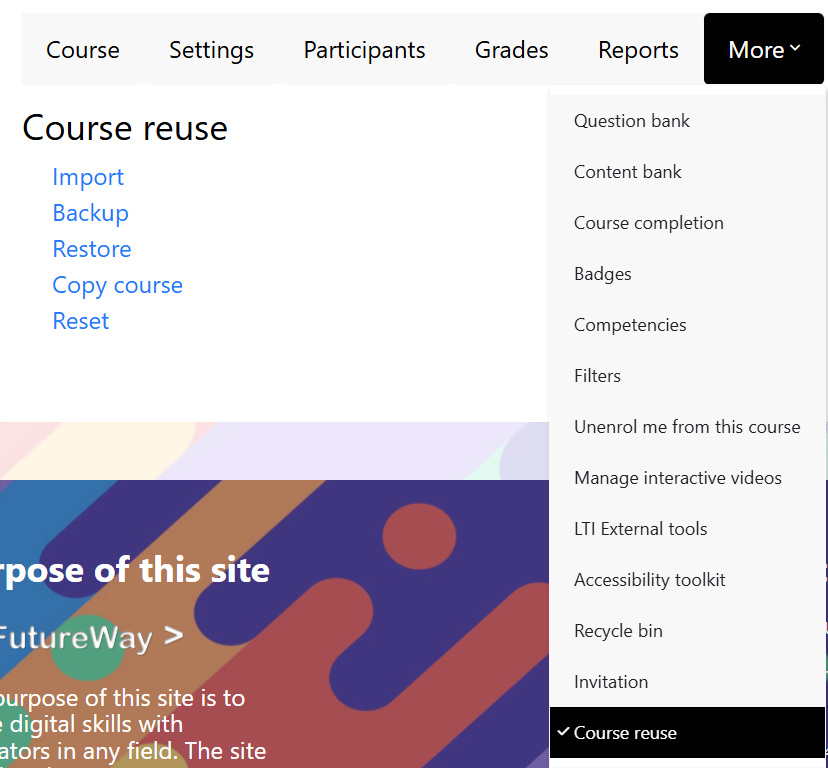
From the destination course, choose More → Course reuse. Select Restore from the reuse menu or dropdown.
2Upload your target backup
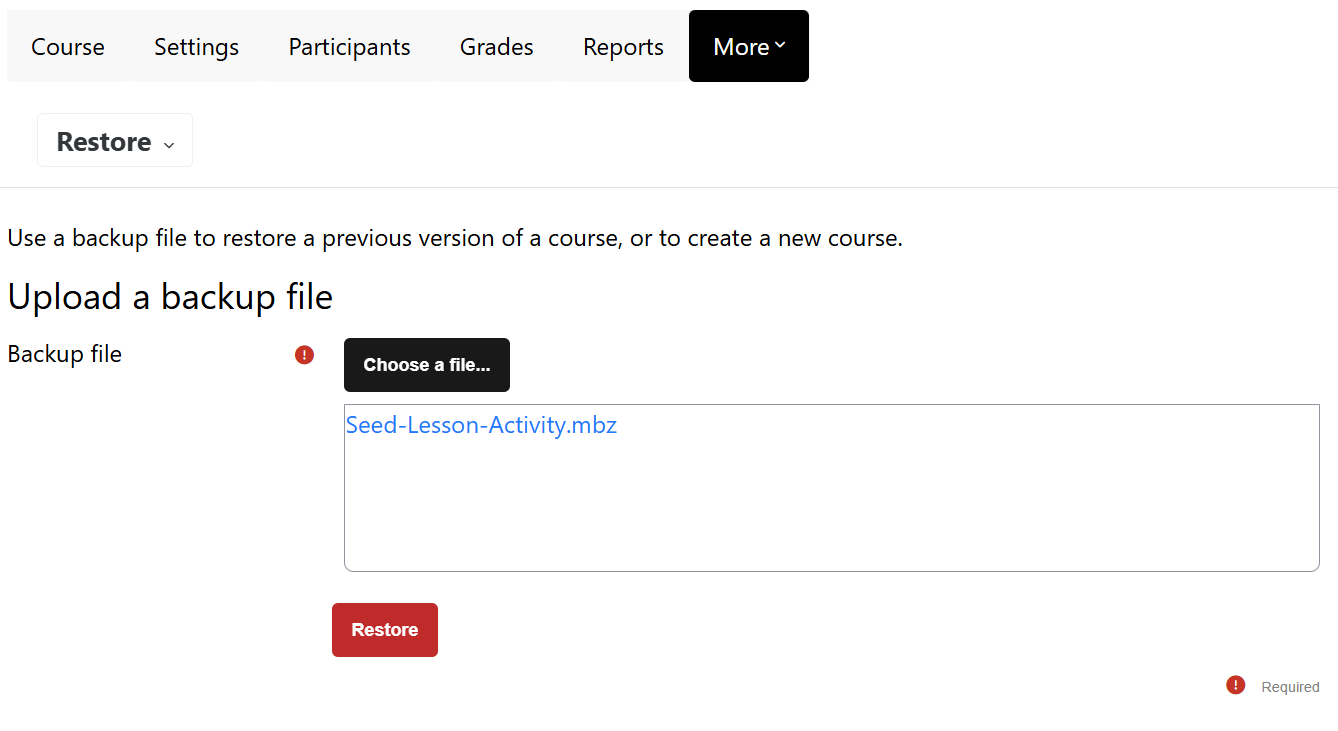
Drag your target .mbz into the backup-file area, or select Choose a file and upload it. Once the correct filename is displayed, click Restore.
3Confirm what is in the file
Read the backup details: the activity, Moodle version and included items. Check that this is the file you intended to restore and that it contains no enrolled-user data. Then click Continue.
Embedded illustrations need files: a target containing uploaded images should include its file content. Our original seed could have no embedded files; the illustrated target needs them.
4Choose the destination carefully
Restore into the current course or another existing test course available to you. Choose Merge the backup course into this course, or the equivalent merge option for the existing course you select, and click the corresponding Continue button.
Preserve your course: do not select Delete the contents of this course and then restore. Merging adds the backed-up activity alongside existing course content. It does not replace an earlier copy of the activity.
5Check settings, schema and review
On Settings, keep the required activities and files included and user data excluded. On Schema, confirm that the intended Lesson is selected. Click Next after checking each screen.
On Review, check the destination and included activity once more. Use Previous if something needs correction. When everything is right, click Perform restore. These screens are checkpoints—read them rather than clicking through automatically.
6Allow the restore to finish
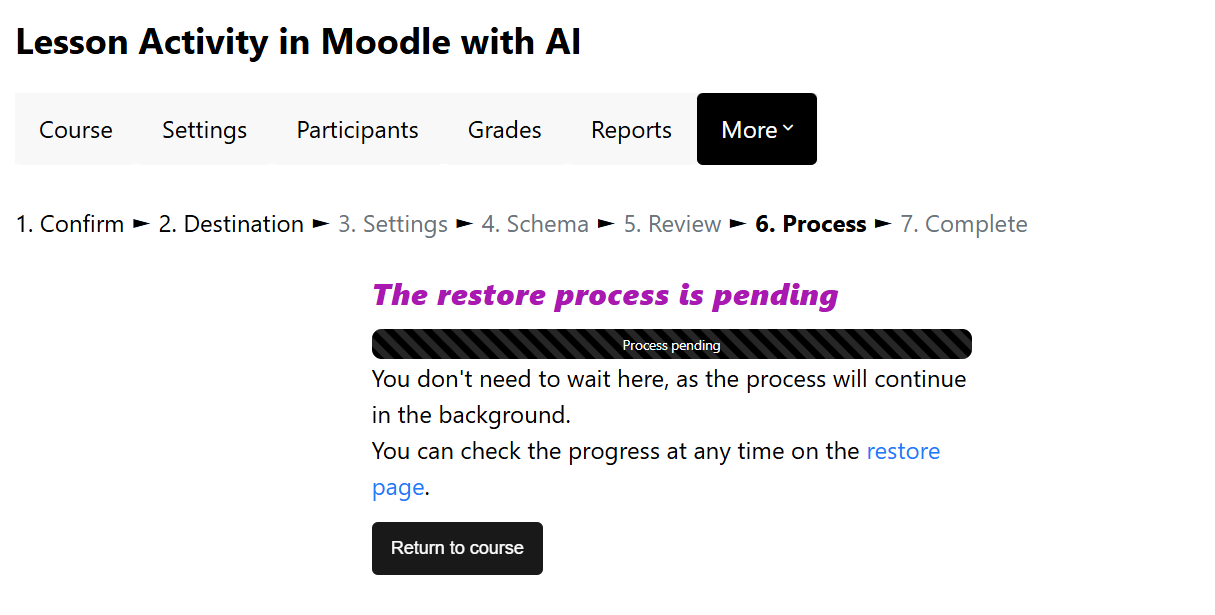
Moodle may complete the restore promptly or show Process pending while it works in the background. Follow the link to the restore page to check progress. Avoid starting the same restore again just because it is pending.
7Return to the course
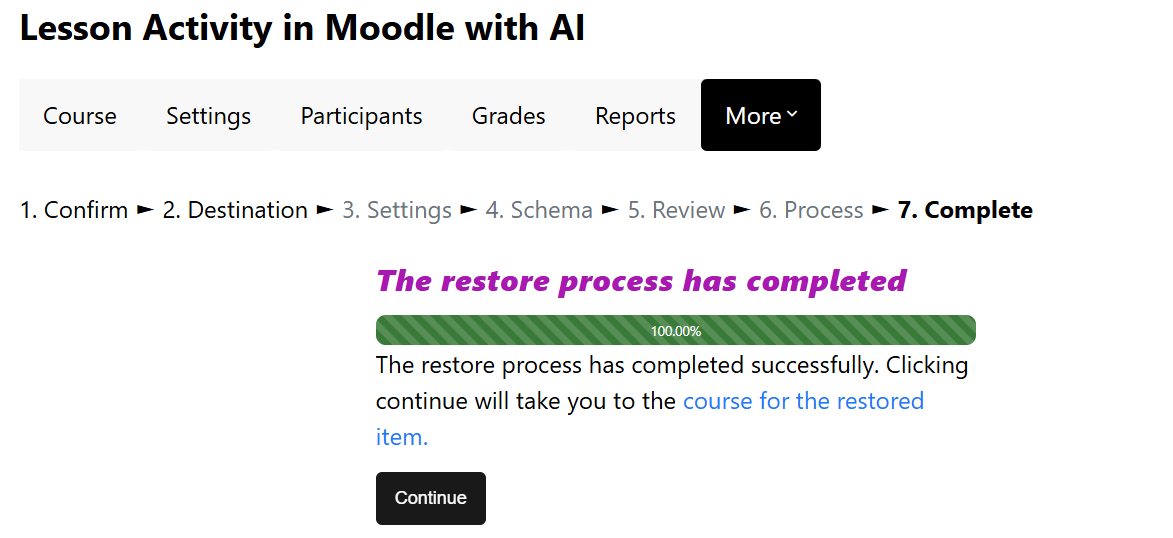
The successful completion message and green bar confirm that Moodle has completed the restore. Click Continue to return to the course, locate the new Lesson and move it to the appropriate section if necessary.
Now test the teaching—not just the file
Open the Lesson and inspect its structure as a teacher. Then use a suitable student test account to check the learner experience; teacher preview alone may not reproduce all grading and completion behaviour.
- Content and images: are explanations accurate, labels readable, images present, and sources and credits retained?
- Navigation: do the buttons take the learner where your plan says they should? Can every route eventually reach the ending?
- Correct answers: does each question have one unambiguous correct answer, useful feedback and the intended forward jump?
- Incorrect answers: try each distractor. Does it return to the relevant explanation, and can the learner then return to the same question?
- Settings: check attempts, feedback, grading, the Lesson menu and completion against your teaching intentions. Compare them with the seed settings you asked to preserve.
- Presentation: check a narrow screen as well as your usual desktop view.
Remember: reaching the end is not necessarily the same as demonstrating mastery. A practice Lesson, a menu that permits skipping, or relaxed completion settings may be suitable for a seed but need reconsideration for a target.
If something goes wrong
Capture the error message in a clear screenshot and, if possible, copy the exact wording. Give ChatGPT the backup file, the destination Moodle version, the restore step where the error appeared and what you selected. Remove personal information from screenshots before sharing them.
Ask it to investigate before changing anything. An error may concern the generated backup, permissions, missing plugins, upload limits or the site’s configuration. ChatGPT may be able to revise the backup; a site issue may need your administrator.
Example: Unknown backup format. Moodle could not recognise the selected file as a valid backup. Share the file as well as this message so your collaborator can investigate the archive and its metadata. The screenshot alone does not establish the cause.
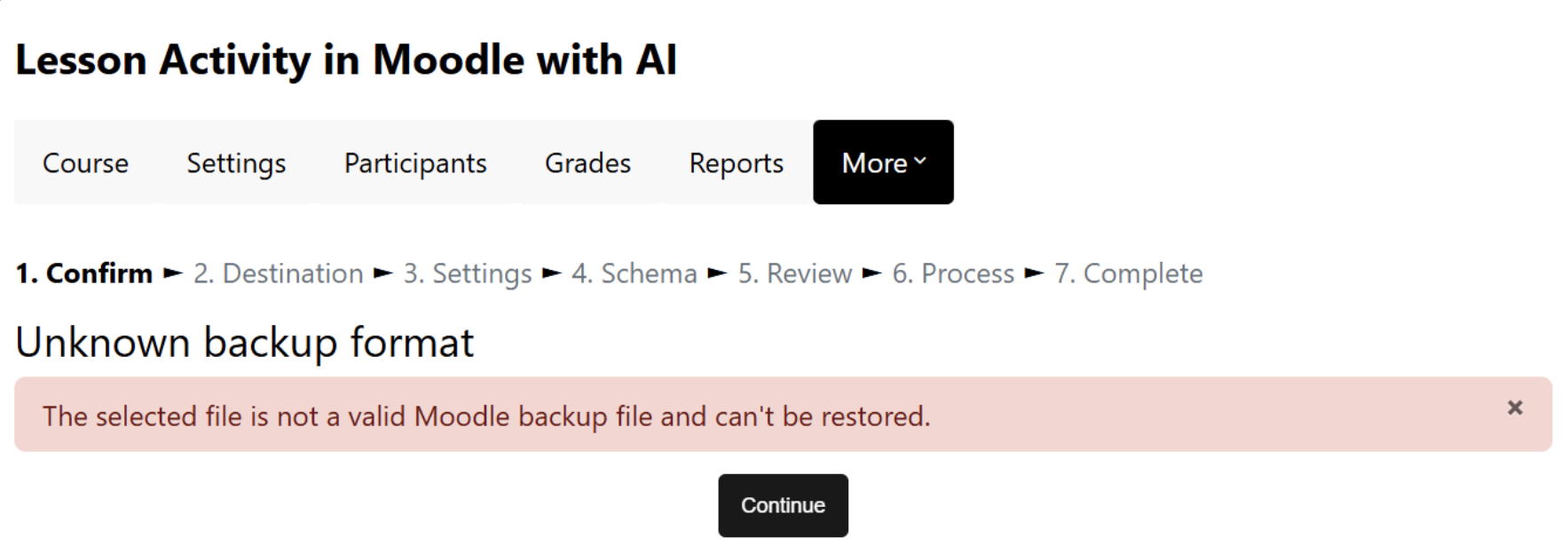
I tried restoring this target Lesson into Moodle [version]. At [restore step], I received the attached error: [paste exact wording]. I selected [destination and options]. Please inspect the backup and explain the cause. If the backup needs correction, prepare a revised .mbz, preserve the approved content and settings, and explain what changed. Do not connect to my Moodle site.
If a restore only partly succeeds, inspect the course before trying again. A second merge may create another copy. For teaching refinements after a successful restore, describe the specific problem—for example, which question returned to the wrong page—and request a focused revision.
Three improvements to carry into your next Lesson
- Supply substantial source material. Include explanatory text, teacher notes or a handout when slides depend on a spoken presentation.
- Specify the learning route. For a serial design, ask for explanation → knowledge check → next topic. After an incorrect answer, require explanation → the same question. Ask the AI to flag any seed settings, such as a page menu, that allow bypassing the route.
- Specify what learners must demonstrate. Name the concepts, structures, decisions or skills to assess, rather than asking only for a number of questions.
Further guidance and credits
Moodle 4.5 documentation: Course restore · Activity restore
Restore screenshots: Johan Venter, MyfutureWay. The heart example used illustrations from Servier Medical Art, licensed under CC BY 4.0; added anatomical labels and question markers were adaptations. Retain the illustration credits in your target Lesson.